
Activities and programs
Build a program
Create a program from sections and activities, set the order, and save it to send to clients.
Build a program when a client should work through several activities over weeks instead of one at a time. You arrange the activities in sections, decide when each one is delivered, and reuse the program with as many clients and groups as you like.
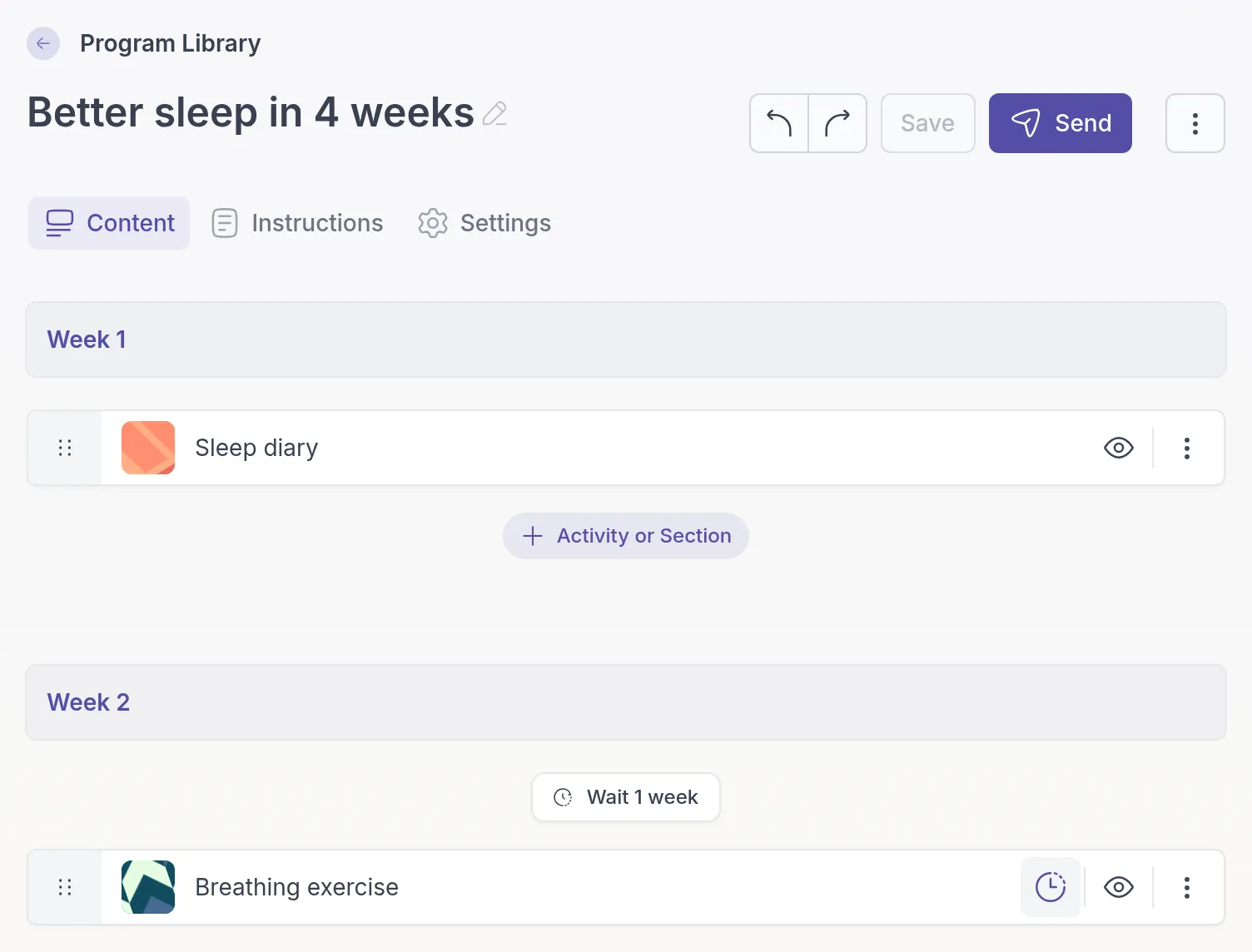
For example, Sarah Bennett’s Better sleep in 4 weeks has a section for each week. Week 1 holds a sleep diary, Week 2 a breathing exercise, and each new week starts a week after the previous one. She built it once and sends it to every client who struggles with sleep.
Create the program
Section titled “Create the program”Go to Programs → Library and click + Program. Click the title at the top to name the program; your clients see this name.
Add sections and activities
Section titled “Add sections and activities”On the Content tab, click + Activity or Section where you want to add something, and choose:
- Section to group activities, for example “Week 1” or “Reflection phase”. Type the section title.
- Activity to build a new activity inside the program. Click it to open the activity builder, build it, click Save, and go back with Edit program at the top left.
- Load Activity to add one from your library. Search for it and click it.
Mix different kinds of activities, such as a short lesson, a reflection and an assessment at the end to see what changed.
Arrange the order
Section titled “Arrange the order”The Content tab shows the program in the order your client follows it. Drag an activity by the handle on its left to move it, and use the arrows on a section to move the section up or down.
Set when each activity is delivered
Section titled “Set when each activity is delivered”New activities in a program are set to No delay: they are delivered together with the activity before them. To release them one by one, for example a week apart or after the client completes the previous step, click the clock icon on the activity. See Program delivery.
Reuse or remove an activity
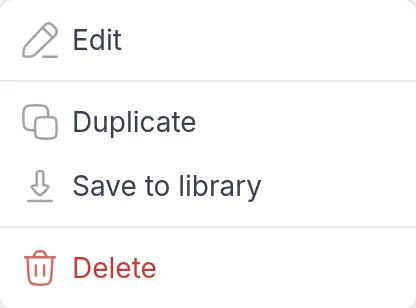
Section titled “Reuse or remove an activity”Click ⋮ on an activity in the program for more options. Save to library puts a copy of an activity you built inside the program into your library, so you can also send it on its own. Duplicate and Delete work within the program.
Add instructions and settings
Section titled “Add instructions and settings”- Instructions tab: notes for you and your team about the program’s purpose, background, or how to adapt it for different clients. Clients never see them.
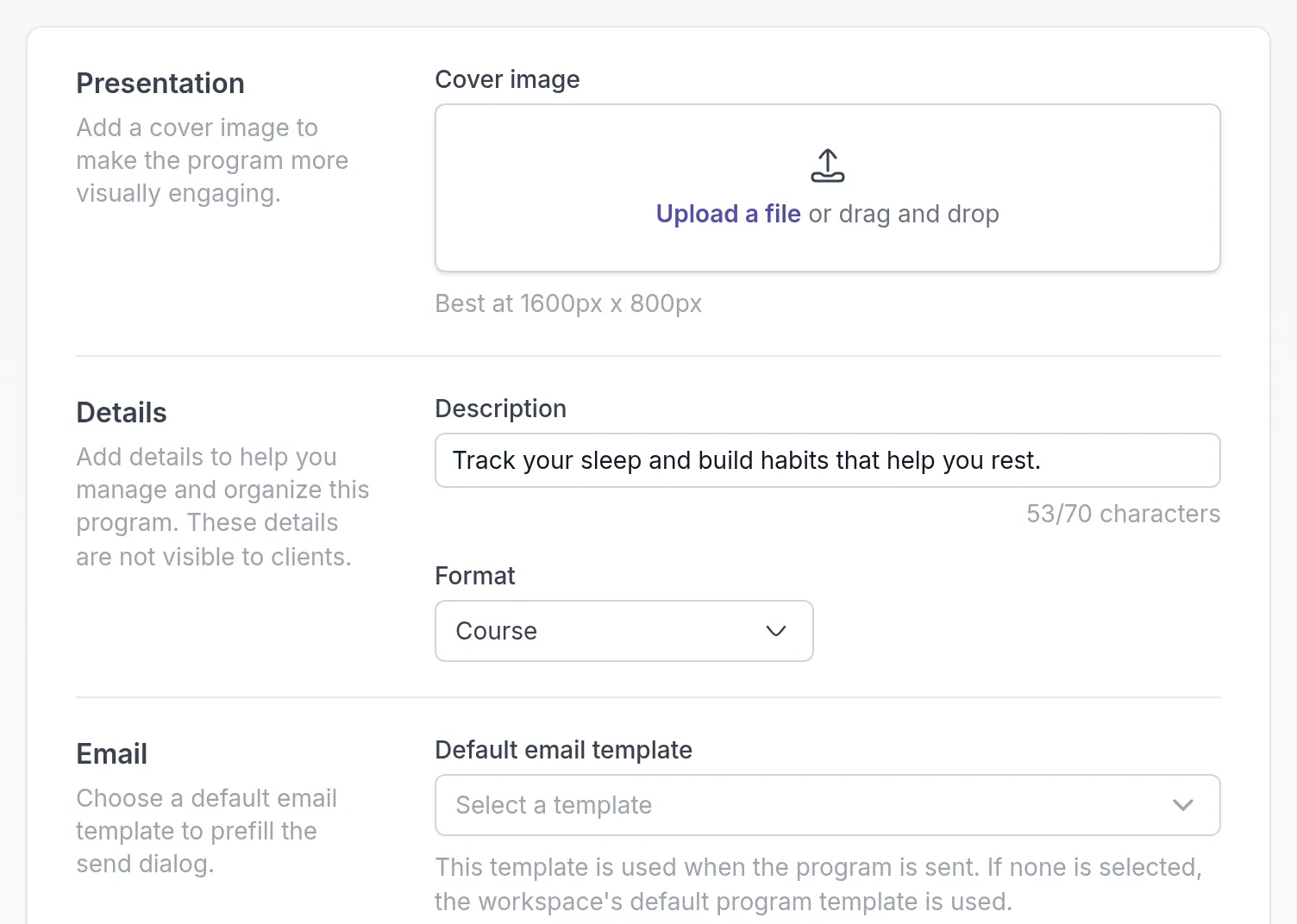
- Settings tab: a Cover image, a short Description (up to 70 characters), a Format such as Course, Training or Treatment, and a Default email template. The description and format help you find the program in your library and are not shown to clients.
Save and send
Section titled “Save and send”Click Save. To send the program, click Send at the top of the builder. See Send a program.
For an overview of your program library, see Programs overview.
Was this article helpful?
Thanks for letting us know.
Thank you. We read every answer and use it to improve this article.