
Work with clients
Send an activity
Send an activity from your library to a client or group and choose when it arrives, who sees the results and how the client is notified.
Send an activity from your library to a client, so they can work on it in their own time. You decide when it becomes available, whether the client gets a reminder and who can see the answers.
When to send an activity
Section titled “When to send an activity”Activities are the homework between sessions: a worksheet, a questionnaire, a journal or an exercise. Some examples from Sarah Bennett’s practice:
- After an intake session, she sends the Values reflection so Emma Clarke can prepare for the next session.
- On Friday she sends the Weekly goals review, set to arrive on Sunday evening.
- Before a first session, a new client gets the Intake questionnaire, with a reminder after two days.
When the client has finished, you get a notification and can review the answers. To fill in an activity together with a client during a session instead, use Fill out now.
You can only send activities to clients with the status Active. The button is unavailable for clients who are archived or who have not accepted their invitation yet. To work with an archived clientArchived clientA client you no longer work with, moved out of your active client list. Their history stays, and you can unarchive them at any time. again, first restore the client.
Send an activity to a client
Section titled “Send an activity to a client”- Go to Clients, open the client and select the Activities tab.
- Click Send activity.
- Search for the activity in Search or select an activity, select it and click Next.
- Choose the settings (see below) and click Next.
- Choose whether the client gets an email, and click Send.
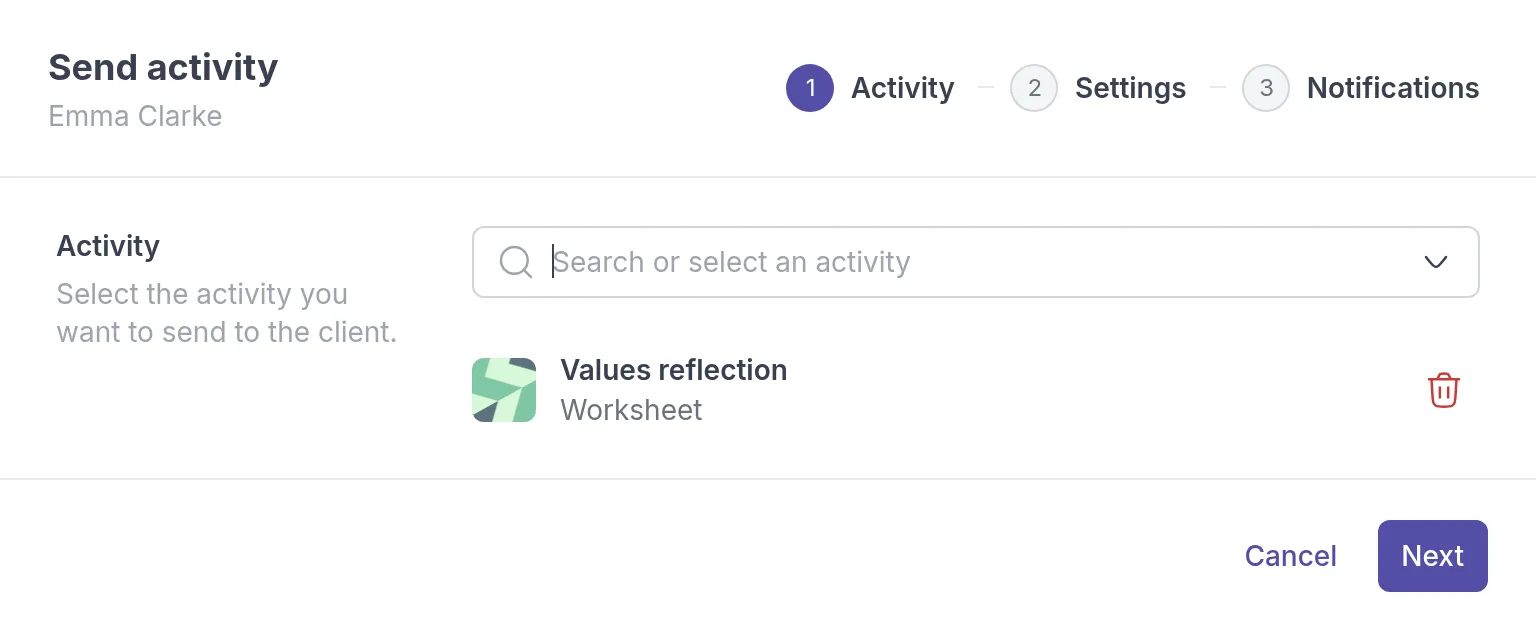
The activity appears in the client’s Activities list. Its status is Planned until the activity becomes available, then Pending until the client starts it, In progress while they work on it and Completed when they finish.
Send to several clients or a group
Section titled “Send to several clients or a group”To send the same activity to several people at once, start from the library:
- Go to Activities → Library.
- Click the ⋯ menu next to the activity and choose Send activity.
- Under Recipients, choose Clients or Groups, add one or more recipients and click Next.
- Complete the Settings and Notifications steps, then click Send.
Each client gets their own copy and their answers stay separate. You can also open a group, select its Activities tab and click Send activity. See Work with groups.
Settings
Section titled “Settings”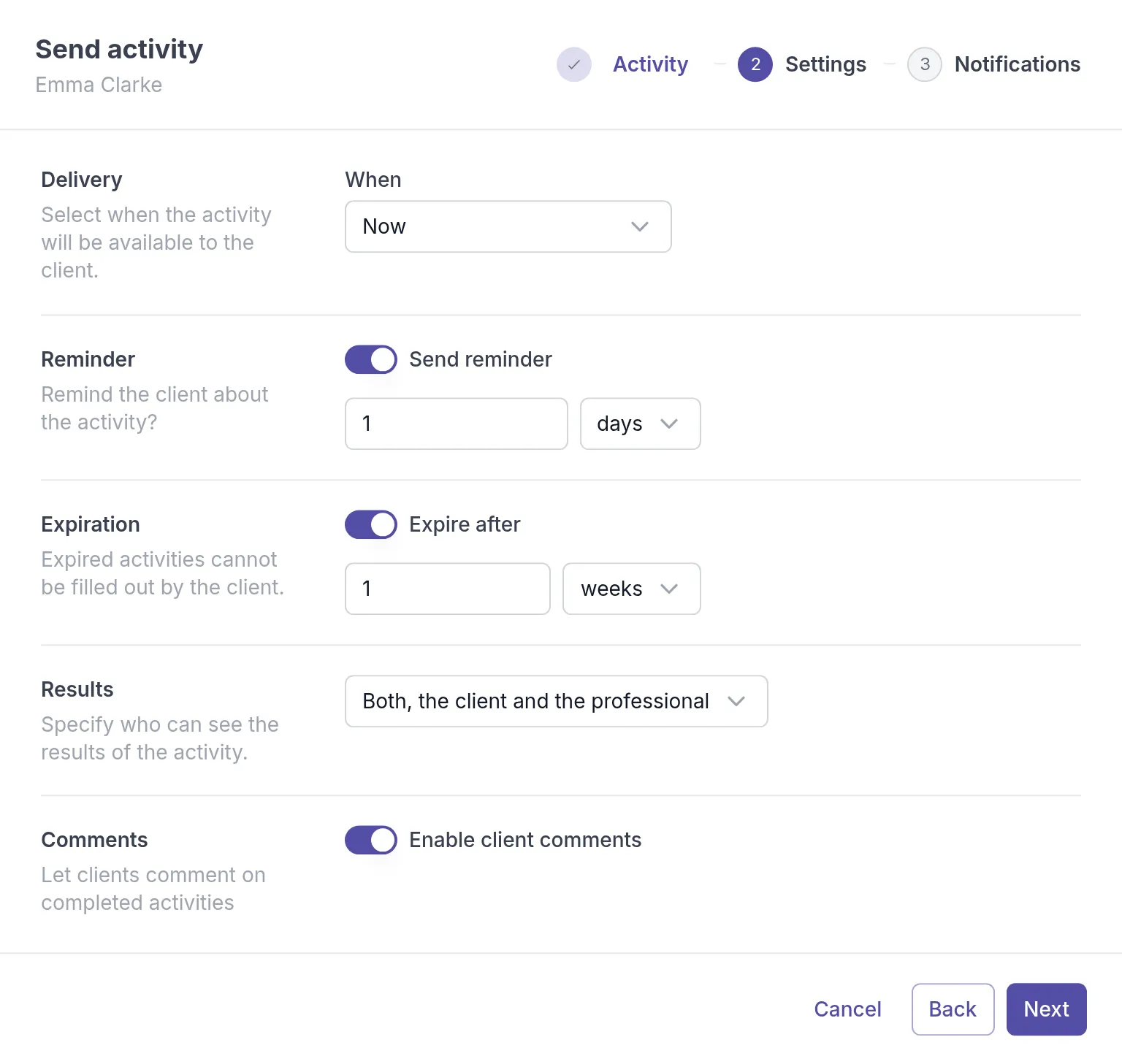
- When: when the activity becomes available. Now, Tomorrow morning (9am), Tomorrow evening (8pm) or Custom, where you pick a Date and Time. Use a later time to prepare homework after a session and let it arrive when the client has time for it.
- Send reminder: turn it on to remind the client if they have not finished the activity after the time you set. The suggested time is one day.
- Expire after: turn it on to close the activity after the time you set, for example one week before the next session. Expired activities cannot be filled out by the client. The reminder must come before the expiry.
- Results: who can see the answers: Both, the client and the professional, Only the client, Only the professional or The client decides. With The client decides, the client makes this choice before starting.
- Enable client comments: lets the client comment on the completed activity. You can change this later on the activity’s Comments tab.
Notifications
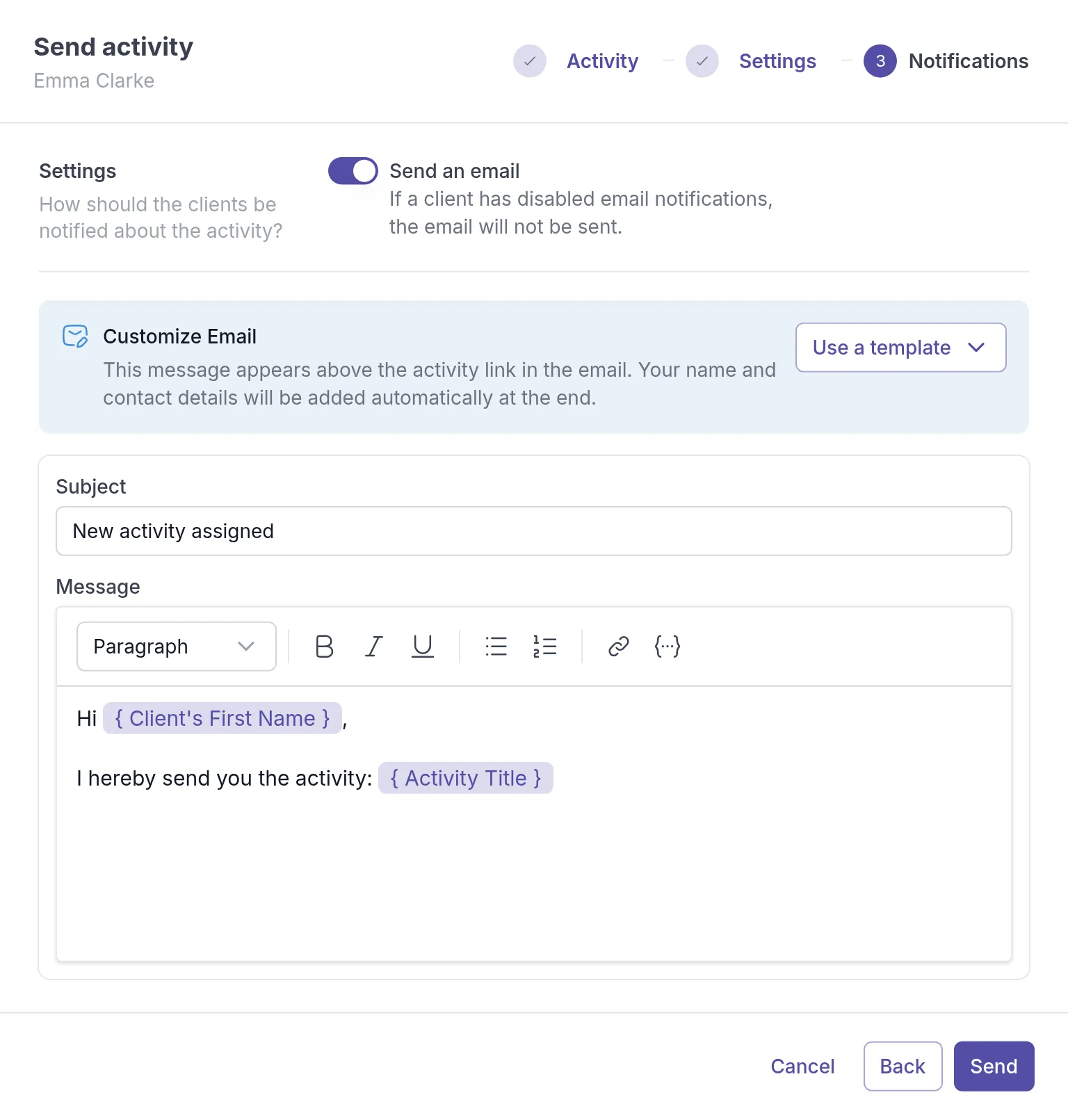
Section titled “Notifications”The activity always appears in the client’s app. In the Notifications step you decide whether the client also gets an email.
- Leave Send an email on to email the client. If the client has turned off email notifications, the email is not sent.
- Under Customize Email, pick a template in Use a template or edit the Subject and Message. The message appears above the link to the activity, and your name and contact details are added at the end. See Create and use email templates.
After sending
Section titled “After sending”Open the ⋯ menu next to the activity in the client’s Activities list. Which actions you see depends on the activity’s status:
| Action | When it shows | What it does |
|---|---|---|
| Fill out now, Continue or Make changes | Once the activity is available, and not canceled | Opens the activity so you can fill it in with the client. See Fill out now. |
| Remind | Pending or In progress | Sends the client a reminder now, after you confirm with Send Reminder. |
| View | Always | Opens the activity and, once the client has worked on it, their answers. See Review completed activities. |
| Export as PDF | Completed, if you can see the results | Downloads the answers. See Export as PDF. |
| Cancel | Planned, Pending or In progress | Withdraws the activity after you confirm with Cancel activity. |
| Delete | Canceled | Removes the canceled activity from the list for good, after you confirm with Delete activity. |
Continue and Make changes only show when the results are visible to you.
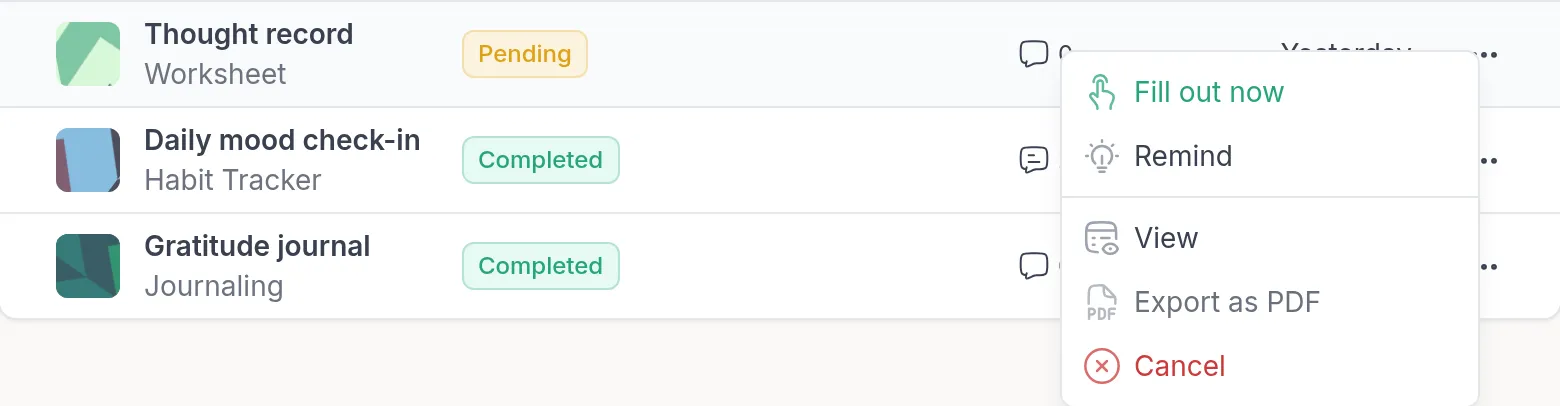
When you cancel an activity that the client can already see, it disappears from their app and they get a notification. A canceled activity stays in your list with the status Canceled, until you delete it.
Was this article helpful?
Thanks for letting us know.
Thank you. We read every answer and use it to improve this article.