
Chat and notifications
Group chat
Turn on group chat for a group so its members and assigned professionals can message each other in one shared conversation.
Group chat gives a group one shared conversation for all its members and the professionals assigned to it.
It works well for groups that meet over several weeks. In the Mindfulness group, for example, Sarah Bennett posts the theme of next week’s session, members share how their daily practice went, and someone asks whether the Thursday session is still on. Members support each other between sessions, and Sarah stays in the loop without sending the same message to each member separately.
Group chat is available from the Growth plan. See Plans and pricing. For 1:1 chats, see Chat.
Turn on group chat
Section titled “Turn on group chat”Group chat is off by default, because you may want members to talk only to you, or use a group only to send content. You turn it on for each group separately: open the group under Groups, go to the Chat tab and click Enable chat.
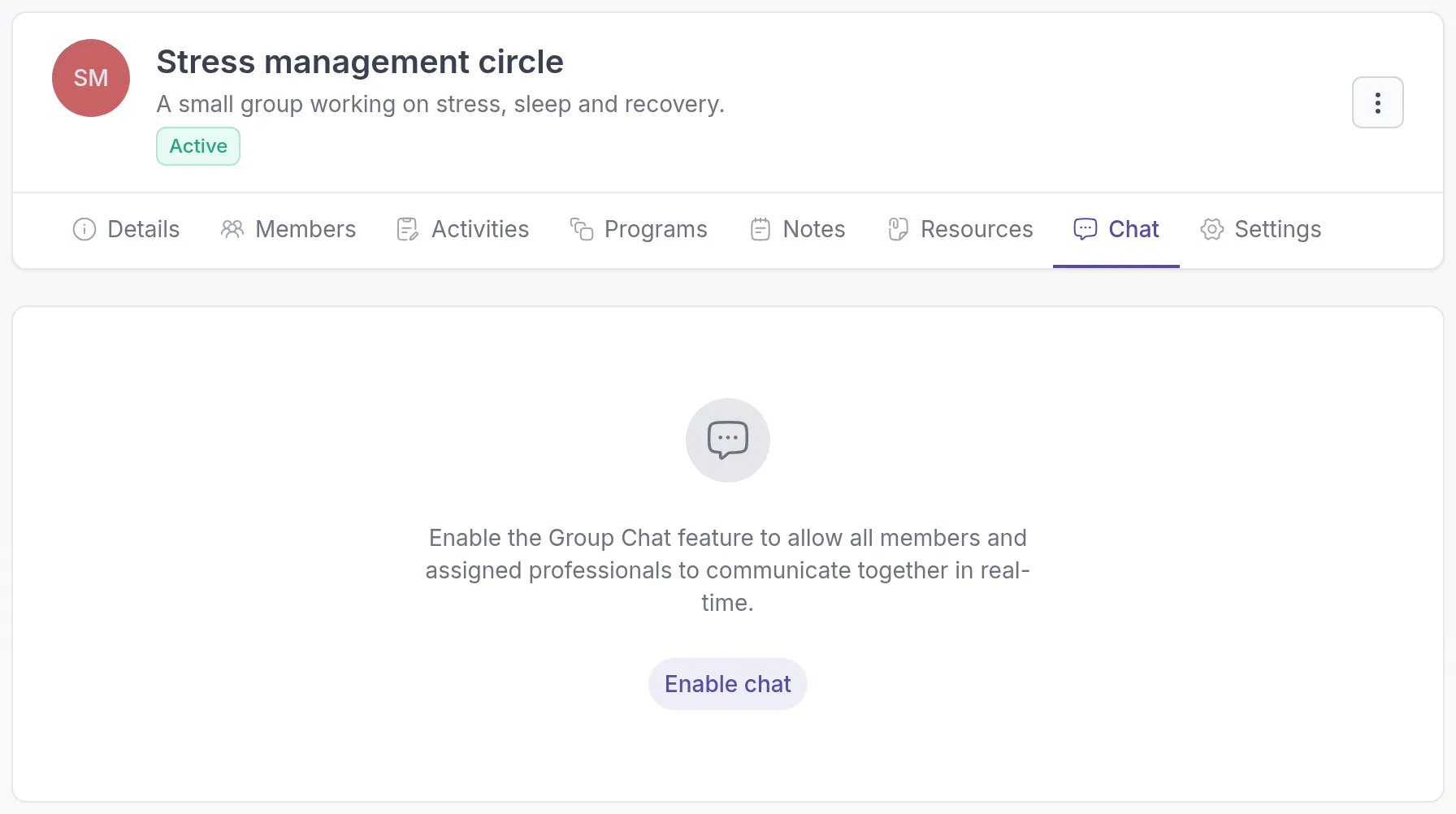
The chat is active straight away. You can also turn it on when you create the group, with Enable group chat. See Groups.
Open the group chat
Section titled “Open the group chat”The group is listed with your other conversations under Chats at the top of the screen. You can also open the group, go to the Chat tab and click Open chat.
Your clients find the group chat in the client app under Chats, in the Other chats list. Clients only see the chats of groups they are a member of. See Message your professional in chat for what clients see.
Who can take part
Section titled “Who can take part”All members of the group can read and send messages. Of the professionals, only those assigned to the group can take part.
If you are not assigned to the group, the Chat tab shows “To join the conversation, please make sure you are assigned to this group.” To join, change the professionals under Assigned professionals on the group’s Details tab.
Read receipts (Sent and Seen) are not shown in group chats.
What new members can see
Section titled “What new members can see”When you add a client to a group, they only see messages sent after they joined. Earlier messages stay hidden from them. The same applies to professionals you assign to the group later.
This protects the members who were already in the group: they shared their messages with the people who were there at the time. If someone joins the Mindfulness group in week four, they don’t read what the others wrote in the first three weeks.
Turn off group chat
Section titled “Turn off group chat”To close the conversation, for example when a group has finished, open the group’s Chat tab and click Disable chat.
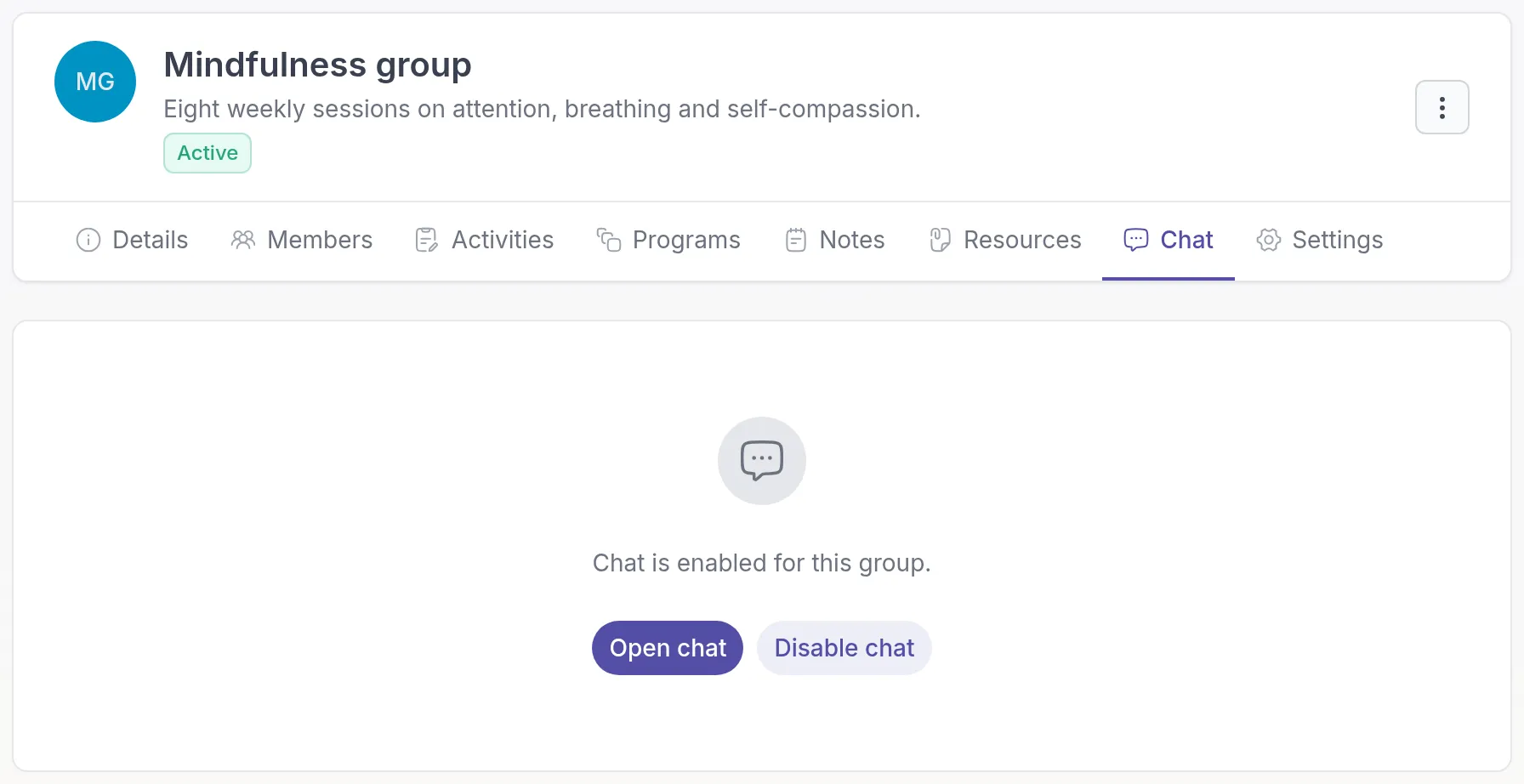
The chat closes straight away for everyone. Clients no longer see it, and professionals see “This chat is disabled for this group.” Earlier messages are kept, and Enable chat opens the chat again.
When you archive or delete the group
Section titled “When you archive or delete the group”- If you archive the group, the group chat becomes read-only. You can still read past messages, but no one can send new ones.
- If you delete the group, the group chat is deleted too.
Related
Section titled “Related”Was this article helpful?
Thanks for letting us know.
Thank you. We read every answer and use it to improve this article.