
Get started
Set your PIN
Lock Quenza with a 4-digit PIN when you step away, and change or turn off the PIN in your account.
A PIN protects your clients’ information when you step away from your screen. With a PIN turned on, Quenza locks after 30 minutes without activity, and you unlock it with your 4-digit code instead of signing in again. In the mobile app, Quenza also locks when you leave the app.
This helps in a shared practice room or on a laptop you take to sessions: if you walk away between clients, nobody who sits down at your computer can read a client’s notes or chats.
Your PIN belongs to your Quenza account, so it works in every workspace you use. You may already have set one when you started your trial.
Turn on the PIN or change it
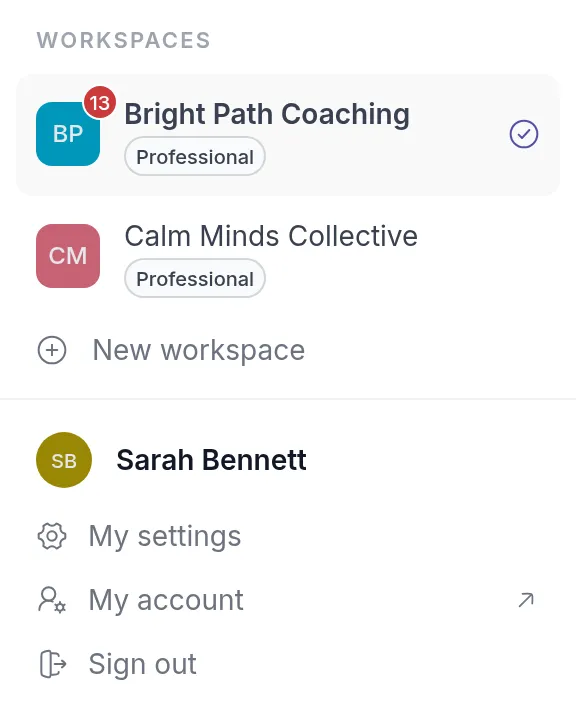
Section titled “Turn on the PIN or change it”- Click your workspace name at the top left and choose My account. Your account opens in a new browser tab.
- Open the Security tab.
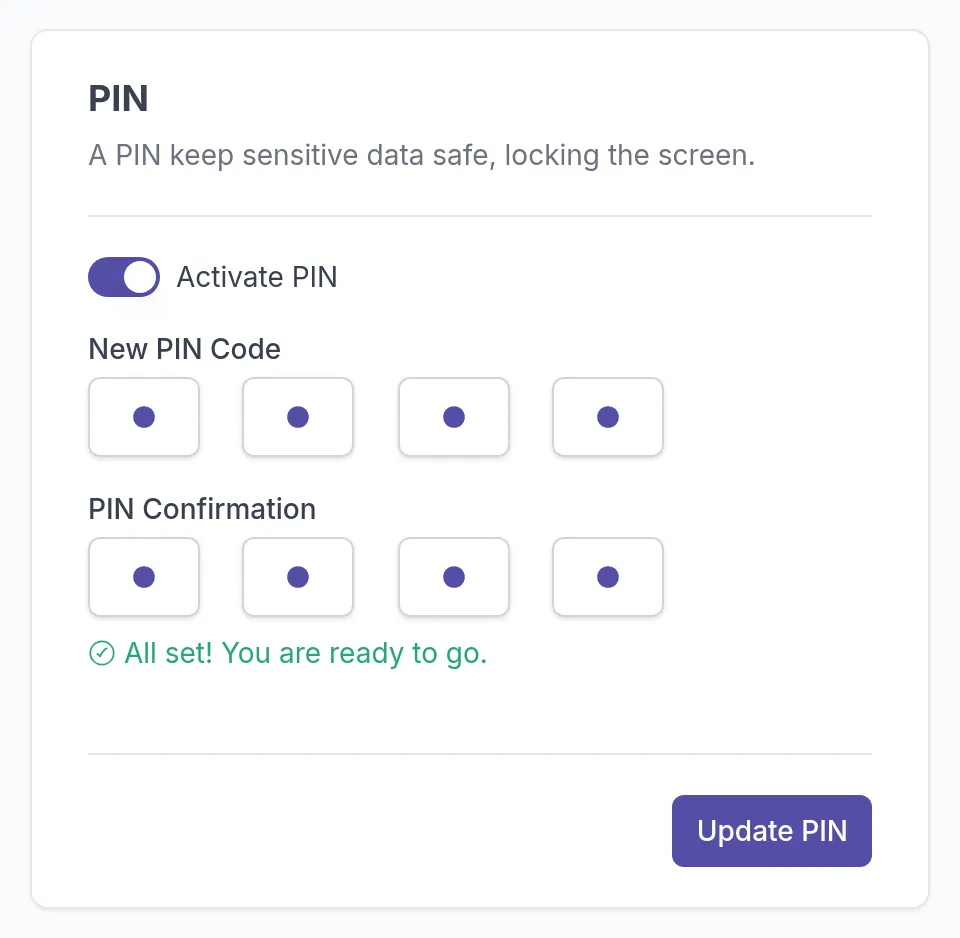
- In the PIN section, turn on Activate PIN.
- Enter 4 digits under New PIN Code and the same 4 digits under PIN Confirmation. When they match, Quenza shows All set! You are ready to go.
- Click Update PIN.
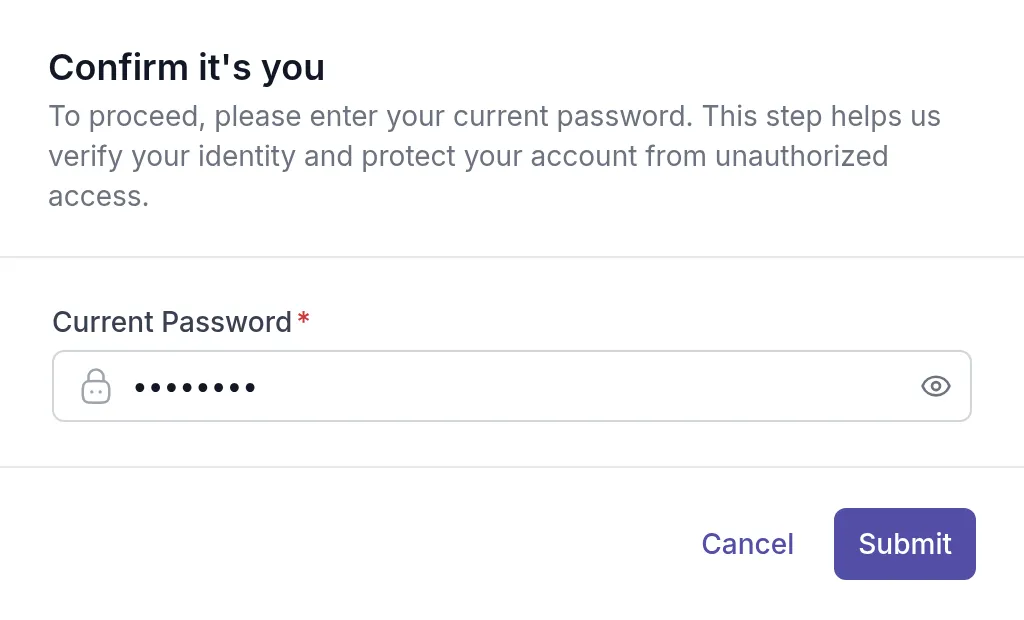
- In the Confirm it’s you window, enter your Current Password and click Submit.
To change your PIN later, follow the same steps and enter the new code.
Turn off the PIN
Section titled “Turn off the PIN”On the Security tab, turn off Activate PIN, click Update PIN, and confirm with your Current Password. Quenza then no longer locks when you are inactive.
Unlock Quenza
Section titled “Unlock Quenza”When Quenza is locked, it shows Locked and asks for your PIN. Enter your 4-digit code to continue where you left off.
If you enter a wrong PIN three times, Quenza asks for your password instead. After three wrong passwords, you are signed out. If you forgot your password, see Reset your password.
Your password is on the same Security tab. See Change email or password.
Was this article helpful?
Thanks for letting us know.
Thank you. We read every answer and use it to improve this article.