
Activities and programs
Activities overview
See what activities are, where to find your activity library, and how to create your own exercises and worksheets for clients.
Activities are the exercises, worksheets, assessments, journaling prompts and lessons your clients complete between sessions. You build an activity once, keep it in your library and send it to as many clients as you like.
For example, after an intake session Sarah Bennett sends Emma Clarke the Values reflection, so Emma can prepare for the next session. Every evening that week Emma also fills in a short gratitude journal. Sarah reads the answers before they meet.
Your activity library
Section titled “Your activity library”Activities → Library holds every activity in your workspace: the ones you and your colleagues built, and the pre-made activities you added from Quenza’s collection. Switch between the list and the grid with the buttons next to + Activity.
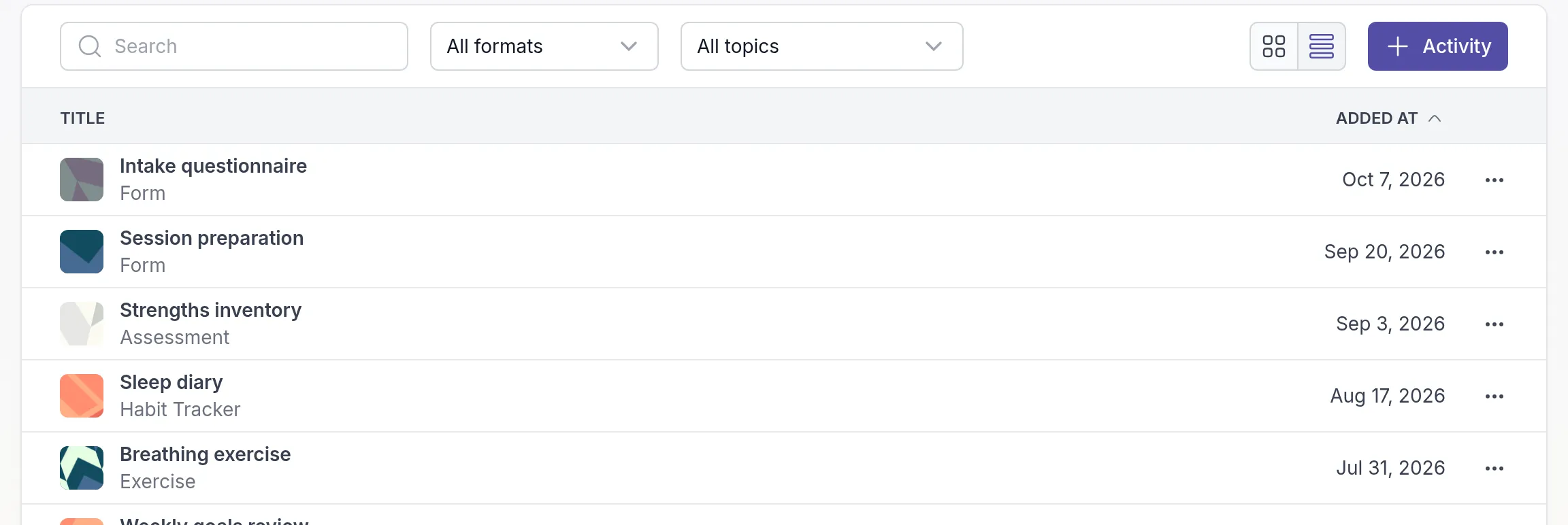
Find an activity
Section titled “Find an activity”Type part of the title in the search field, or narrow the list with the filters:
- All formats: show one format, such as Worksheet, Assessment or Journaling. You choose the format of an activity on its Settings tab.
- All topics: show activities about one topic, such as Assertiveness or Career Planning. The number after each topic tells you how many activities have it. Type in the filter to find a topic quickly.
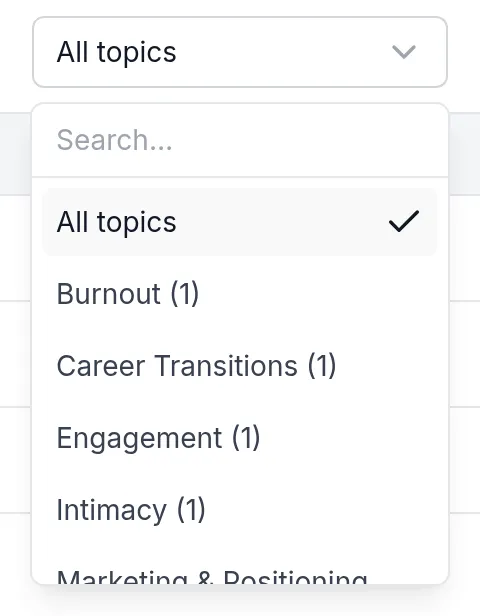
The same filters are on the Pre-made page, which helps when you browse Quenza’s collection for something to start from.
Start from a pre-made activity
Section titled “Start from a pre-made activity”You do not have to start from scratch. Go to Activities → Pre-made, open an activity to preview it and click Add to library. Send it as it is, or adapt the wording to your approach first. See Pre-made content.
Create your own
Section titled “Create your own”Click + Activity to open the activity builder. You build the activity from elements, such as text, questions, scales, tables and video, and preview it as your client will see it.
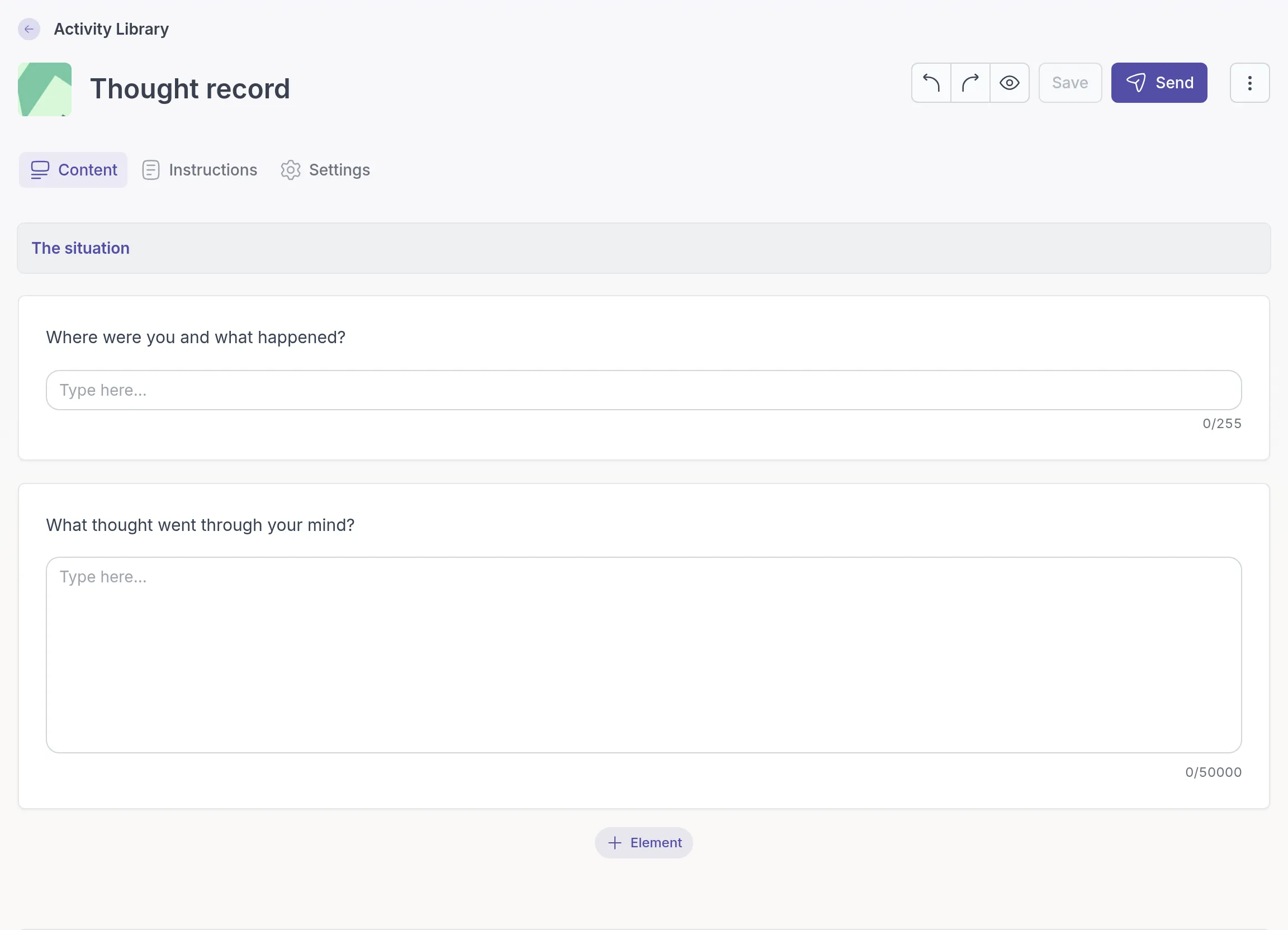
The builder has three tabs:
- Content: what your client works through.
- Instructions: private notes on how and when to use the activity. Clients never see them.
- Settings: a cover image, a short description for your own reference, a format, a default email template and layout options.
See Build an activity and Question and element types.
Work with an activity
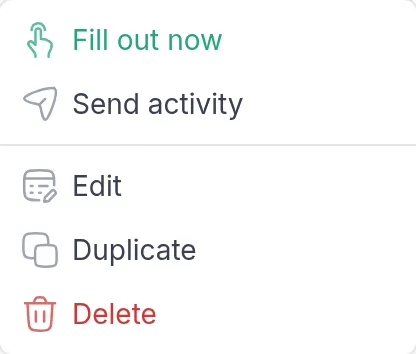
Section titled “Work with an activity”Click ⋯ in an activity’s row for what you can do with it:
- Fill out now: complete the activity together with a client during a session. See Fill out now.
- Send activity: send it to clients or groups. See Send an activity.
- Edit: open it in the builder.
- Duplicate: make a copy to adapt for a different need, such as a shorter version for teenagers.
- Delete: remove it from your library.
Delete an activity
Section titled “Delete an activity”Delete an activity you no longer use to keep your library tidy. Choose Delete in its ⋯ menu and confirm with Delete activity.
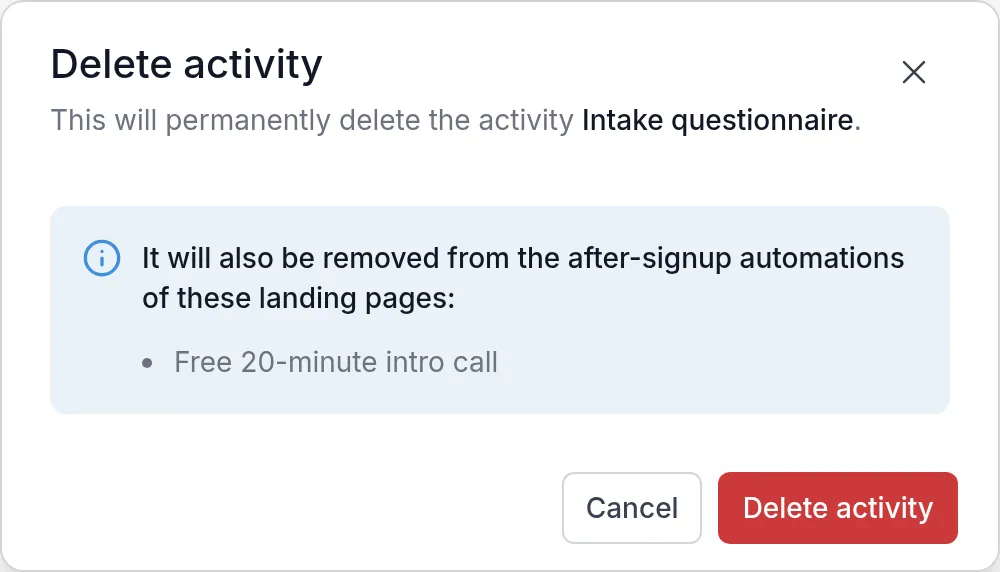
Activities you already sent stay with your clients, with their answers. If a landing page sends this activity to new sign-ups, the dialog names the page; after deleting, the page no longer sends it. Programs that contain a copy of the activity are not changed.
Was this article helpful?
Thanks for letting us know.
Thank you. We read every answer and use it to improve this article.