
Brand your practice
Custom domain
Let clients reach the client portal on a subdomain of your own website, such as client.yourdomain.com, by adding a CNAME record.
With a custom domain, your clients open the client portalClient portalThe website where your clients sign in to see their activities, programs, tasks, files and chats. The Quenza app shows the same. on an address that matches your brand, such as client.yourdomain.com, instead of the default Quenza address. You add the subdomain in Quenza, point it to Quenza with a DNS record at your domain provider, and activate it once it is verified.
For example, Bright Path Coaching’s website is brightpath.example.com. With the custom domain client.brightpath.example.com, Emma Clarke signs in on an address that clearly belongs to her coach’s practice. Together with your logo and a custom sender email, clients see your practice everywhere instead of Quenza.
Custom domains are available on the Impact plan and higher. You need permission to edit workspace settings, and access to the DNS settings of your domain. If someone else manages your website, ask them to add the DNS record for you.
Connect your domain
Section titled “Connect your domain”Go to Administration → Workspace → White Label and open the Custom Domain tab. Under Domain, enter the subdomain you want to use, for example client.yourdomain.com, and click Connect Domain.
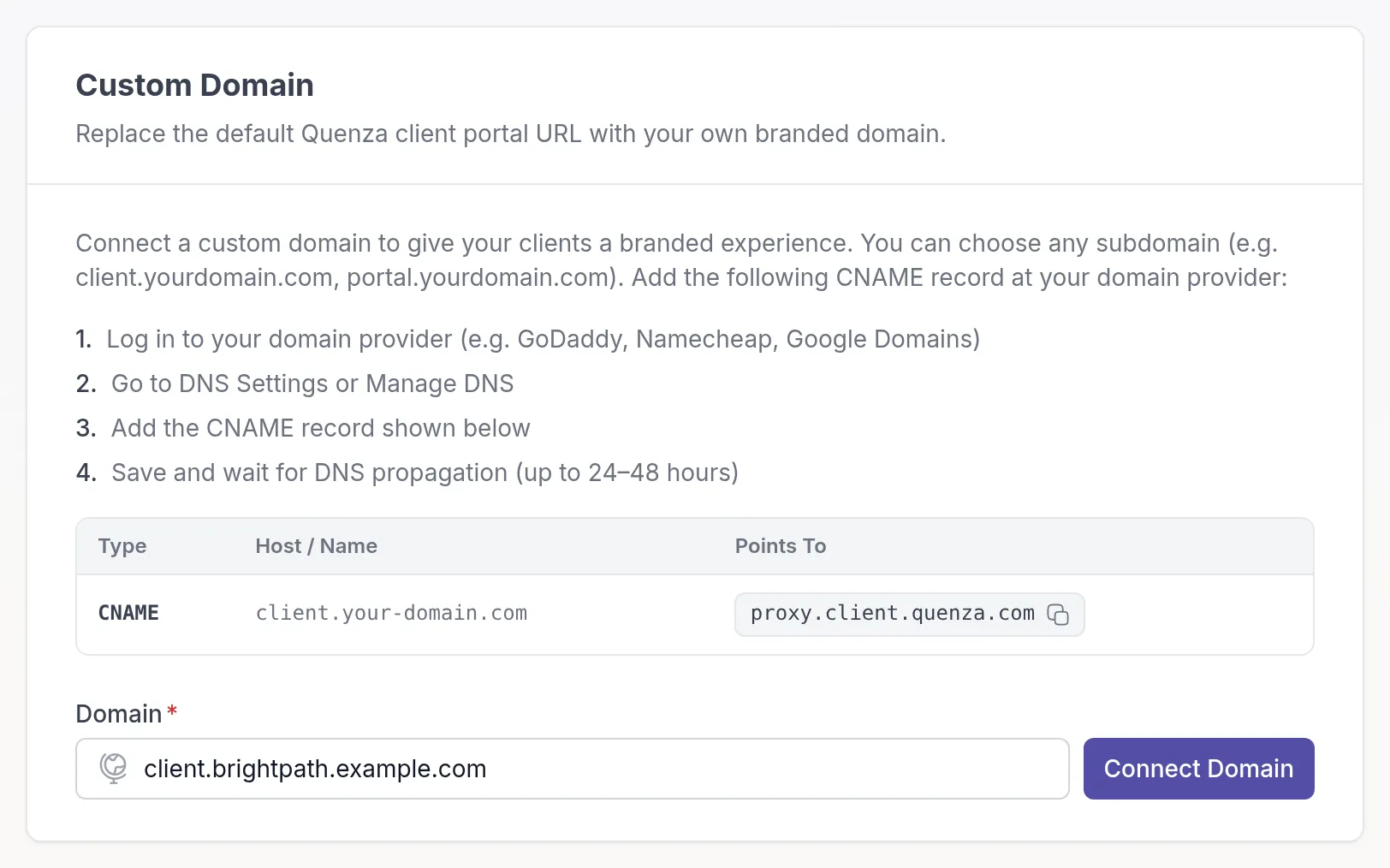
Use a subdomain, such as client. or portal. in front of your domain, not your main website address. Your website keeps working as before.
Add the CNAME record
Section titled “Add the CNAME record”The Custom Domain tab shows the CNAME record to add at your domain provider, such as GoDaddy, Namecheap or Cloudflare:
- Sign in to your domain provider and open the DNS settings for your domain.
- Add a CNAME record with the host shown in Quenza, pointing to
proxy.client.quenza.com. - Save the record.
DNS changes can take up to 24 to 48 hours to take effect.
Verify and activate
Section titled “Verify and activate”Quenza checks the record regularly and emails the workspace owner when the domain is verified. To check yourself, open the Custom Domain tab and click Refresh.
When the page shows Domain verified — activation required, click Activate. Your client portal is now available on your own subdomain, with SSL included.
Deactivate or disconnect the domain
Section titled “Deactivate or disconnect the domain”- Click Deactivate to stop using the domain for now. You can Activate it again at any time without verifying it again.
- Click Disconnect to remove the domain from Quenza. Quenza asks you to confirm.
Related
Section titled “Related”- Landing pages: a published page is also available on your custom domain
- Custom sender email
- Your logo
Was this article helpful?
Thanks for letting us know.
Thank you. We read every answer and use it to improve this article.