
Troubleshooting
Sign-in problems
What to check when you can't sign in to Quenza, from using the right app to error messages and missing login emails.
If you can’t sign in, work through the checks below. Most problems come from signing in to the wrong application or a small typo in the email address. The same checks help when a client tells you they can’t get in: send them this page.
Find the fix for your sign-in problem
Were you invited to Quenza by a professional or a colleague?
What to do
Accept the invitation first: open the email You have been invited to join a workspace and click Accept Invitation. Until then you can’t sign in or reset your password. Can’t find the email, or it says The link has expired? Ask the person who invited you to send it again.
Read the full explanationWhat happens when you try to sign in?
Did you start using Quenza before May 27, 2025?
What to do
Your account may be in Quenza Classic, a separate application. Sign in at app.quenza.com/auth/login with the same details. If that doesn’t work either, check the spelling of your email address and password, or use a login link from the Magic Link tab at my.quenza.com/login.
Read the full explanationWhat to do
Check the spelling of your email address and retype your password slowly; passwords are case-sensitive, so check Caps Lock. Or skip the password: choose the Magic Link tab, enter your email address and click Send login link.
Read the full explanationWhat to do
After five failed attempts within a minute, Quenza blocks new attempts for a short time. Wait until the time in the message has passed, then try again, or sign in with a login link from the Magic Link tab.
Read the full explanationWhat to do
Check your spam and junk folders and the spelling of your address. We only send the email to an address with a confirmed Quenza account, and the page shows the same message even when the address is wrong. A login link works once and expires after 15 minutes.
Read the full explanationWhat to do
Email us the address you sign in with and what you see on the screen, and we will look into it.
The sections below explain each fix in full.
Check that you use the right application
Section titled “Check that you use the right application”Quenza has two separate applications. Your account exists in only one of them, so your email address and password only work there.
- The new Quenza: sign in at my.quenza.com/login.
- Quenza Classic: sign in at app.quenza.com/auth/login.
If you created your account before May 27, 2025, you most likely use Quenza Classic. See Quenza Classic and the new Quenza.
Clients whose professional uses their own web address for the client portalClient portalThe website where your clients sign in to see their activities, programs, tasks, files and chats. The Quenza app shows the same. can also sign in there. See Use your own domain for the client portal.
“These credentials do not match our records”
Section titled ““These credentials do not match our records””This message on the Password tab means the email address and password don’t match an account in the new Quenza. In the example below, Emma Clarke typed emma.clark@ instead of emma.clarke@.
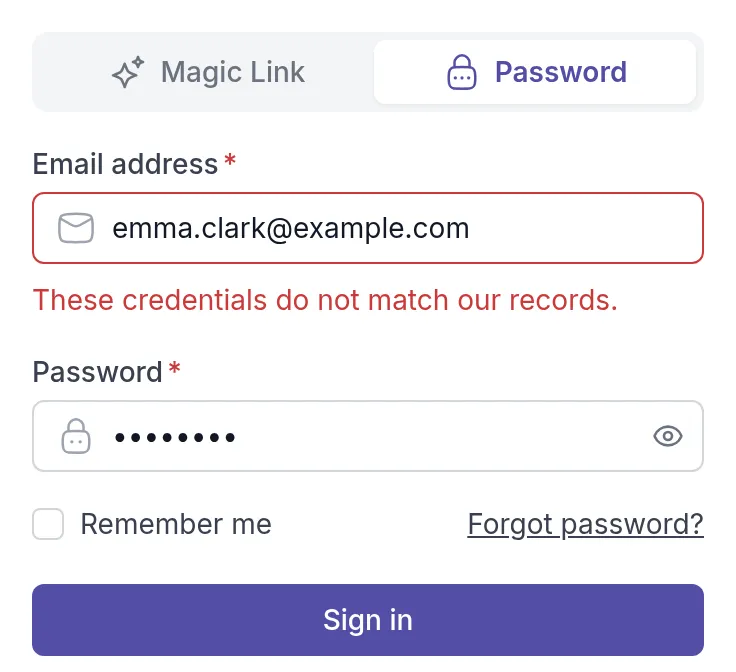
- Check the spelling of your email address. Use the address your account was created with, or the one your invitation was sent to. Capital letters don’t matter.
- Retype your password slowly. Passwords are case-sensitive, so check that Caps Lock is off.
- Still no luck? Reset your password, or sign in with a magic link instead.
Sign in with a magic link
Section titled “Sign in with a magic link”You don’t need a password to sign in. A magic link is a one-time sign-in link we email you. It is handy on a new phone or a shared computer where you don’t want to type a password.
- On the sign-in page, select the Magic Link tab.
- Enter your Email address.
- Click Send login link.
- Open the email with the subject Sign in to Quenza and click Sign in to Quenza.
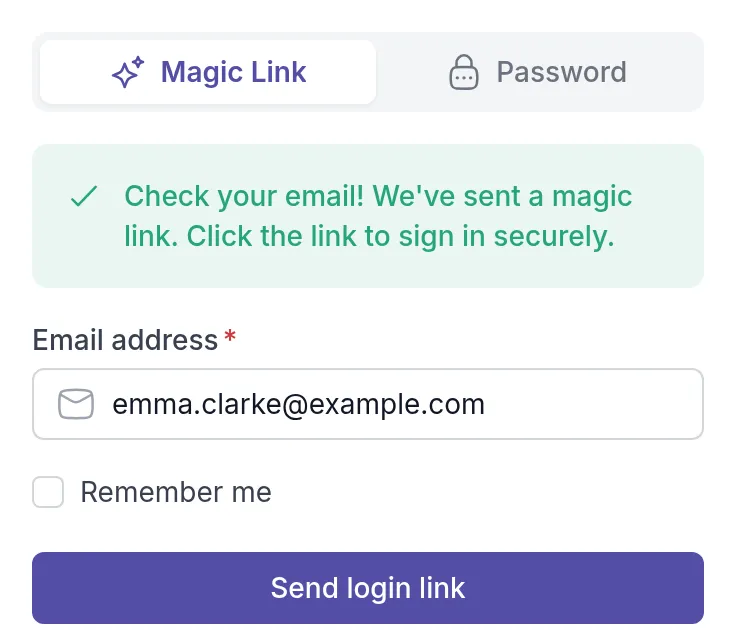
The link works once and expires after 15 minutes. If no email arrives, check your spam folder and the spelling of your address. We only send the link to an email address that has a confirmed Quenza account, so the page shows the same message even when the address is wrong.
“Too many login attempts”
Section titled ““Too many login attempts””After five failed attempts within a minute, Quenza blocks new attempts for a short time. Wait until the time in the message has passed, then try again, or use a magic link.
You haven’t accepted your invitation yet
Section titled “You haven’t accepted your invitation yet”If a professional or colleague invited you, you first need to accept the invitation from the email you received. Until then, you can’t sign in or reset your password. Ask them to resend the invitation if you can’t find it. If you invited a client who can’t find it, see Missing invitation.
Still can’t sign in?
Section titled “Still can’t sign in?”If you use the right application and your details are correct, email us at help@quenza.com. Tell us the email address you sign in with and what you see on the screen.
Was this article helpful?
Thanks for letting us know.
Thank you. We read every answer and use it to improve this article.