
Work with clients
Tasks
Create to-dos for yourself, a colleague or a client, add instructions and a due date, and track them in one list.
Tasks are short to-dos with an optional description and due date. Use them for your own follow-ups, to hand work to a colleague, or to give a client a small action step between sessions.
A task suits something simple that only needs to be done and ticked off. When you want answers back from the client, such as a reflection or a questionnaire, send an activity instead.
For example, after a session about stress at work, Sarah Bennett gives Emma Clarke the task “Breathing exercise before work”, with a short instruction in the description. Emma sees it in her app and ticks it off when she has done it. For herself, Sarah adds “Prepare notes for Emma’s session” with a due date the day before their next appointment.
Create a task
Section titled “Create a task”Go to Tasks and click + Task. In the Add task dialog:
- Title: what needs to be done, for example “Send updated coaching agreement”.
- Description (optional): instructions for the person who does the task. You can format the text, add bullet or numbered lists and add links, for example to a worksheet or a video.
- Due date (optional): the day the task should be done. Overdue tasks stand out in the list.
- Assignee: search for the professional or client who should do the task, or click Assign to me.
- Does the task belong to a client?: this appears when the assignee is a professional. Select a client if the task is about them, such as “Prepare notes for Emma’s session”. The task then also shows on that client’s profile.
Click Add task. The assignee gets a notification, unless you assigned the task to yourself.
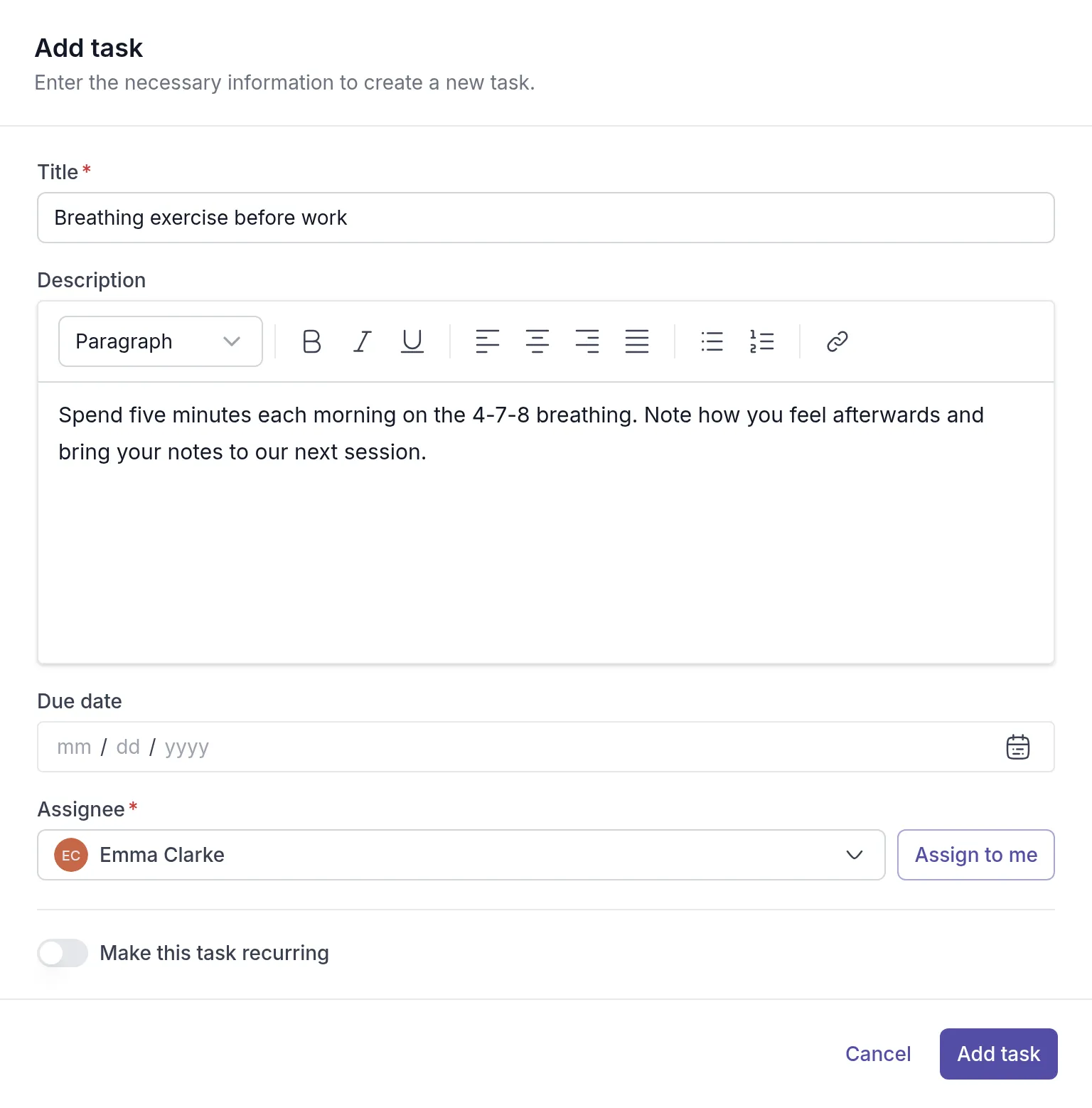
To have the task come back every day, week or month, turn on Make this task recurring before you click Add task. See Recurring tasks.
Give a client a task
Section titled “Give a client a task”Choose the client as the Assignee. The client gets a notification and finds the task in the client portalClient portalThe website where your clients sign in to see their activities, programs, tasks, files and chats. The Quenza app shows the same., where they can mark it as done. When they do, the professional who created the task gets a notification. See Complete a task for what the client sees.
You can also start from the client: open the client’s profile, select the Tasks tab and click + Task. The client is then already filled in. The tab lists every task for this client, both the tasks assigned to them and the tasks you and your colleagues keep about them. Turn off Show completed to see only open tasks.
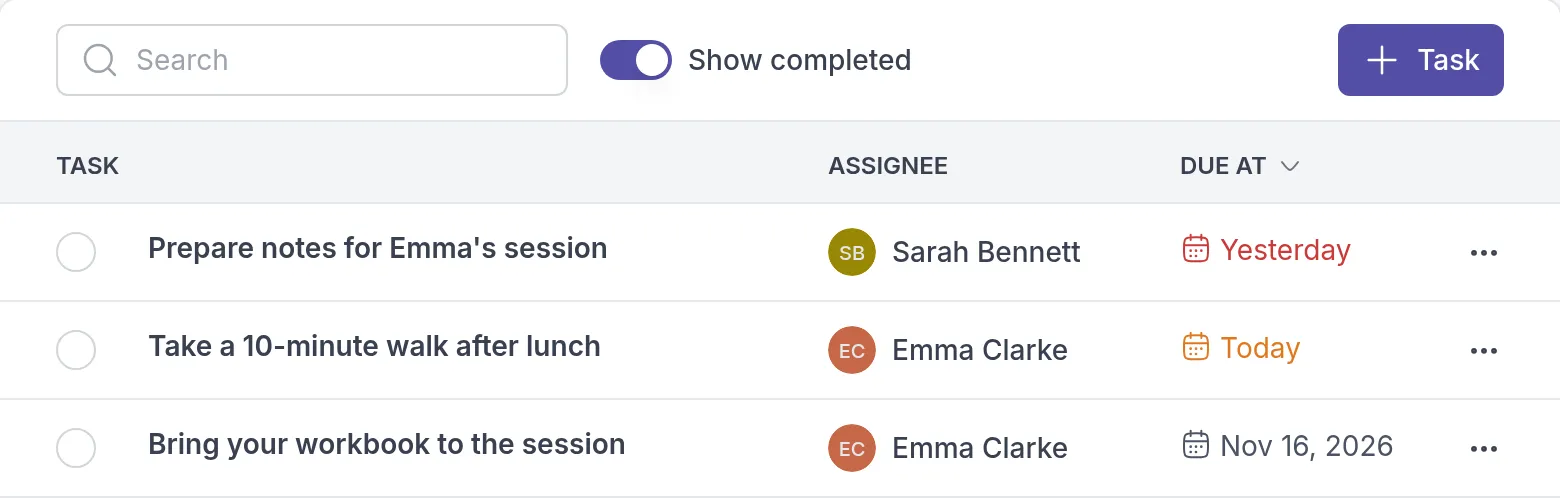
+ Task is unavailable for archived clientsArchived clientA client you no longer work with, moved out of your active client list. Their history stays, and you can unarchive them at any time. and for clients who have not accepted their invitation yet.
Keep track of your tasks
Section titled “Keep track of your tasks”The Tasks page lists the tasks in your workspace on two tabs, Open and Completed, sorted by due date. Use the filters to narrow the list: All tasks or My tasks, and All types or Recurring tasks. Under each task you see the client it belongs to.
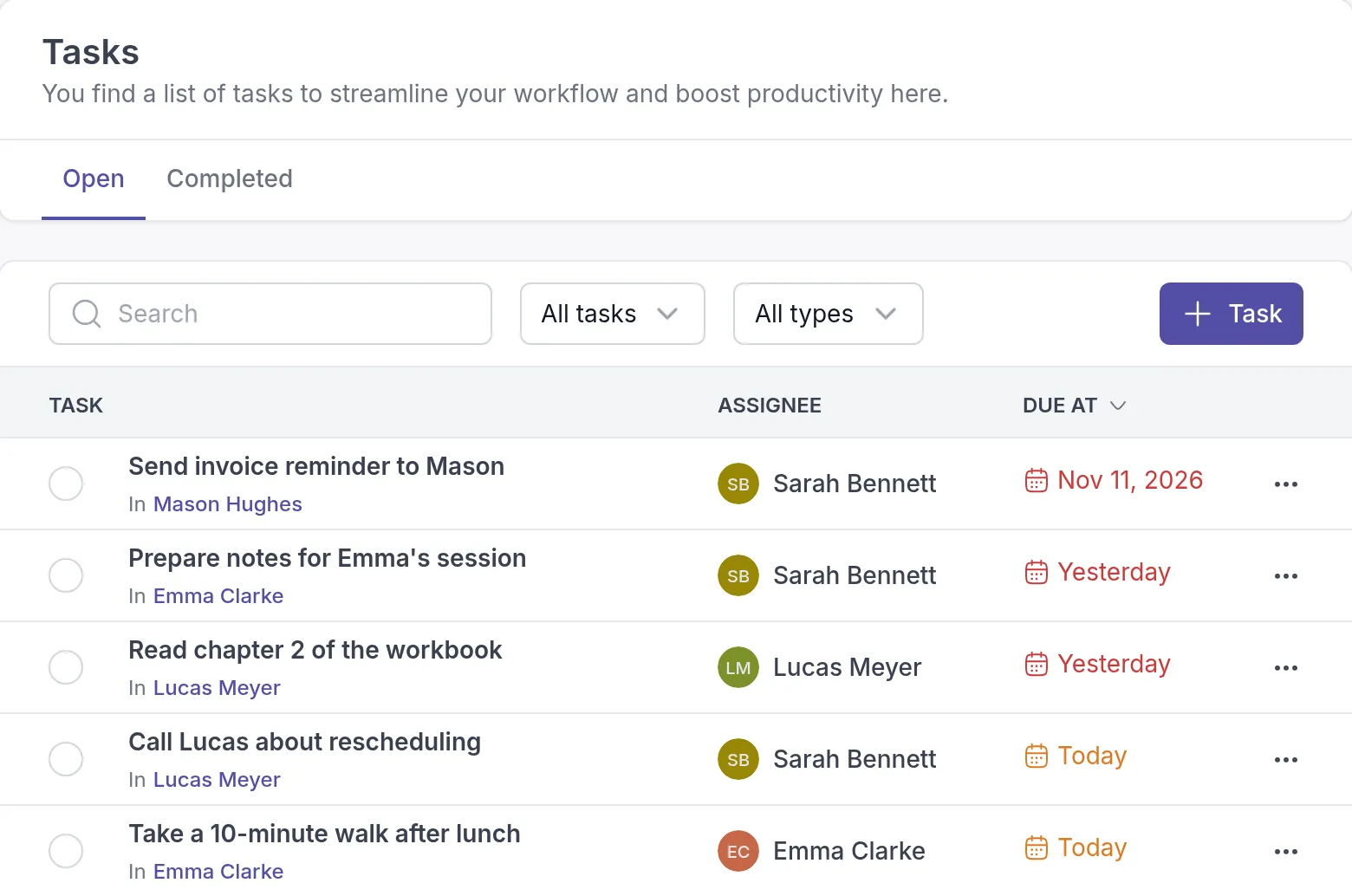
- To mark a task as done, click the circle in front of it. On the Completed tab, click it again to mark the task as open.
- To change a task, click it, or click ⋯ next to it and choose Edit. Make your changes and click Update task.
- To give the task to someone else, click the assignee’s name, choose a new person in Change assignee and save.
- To remove a task, click ⋯ and choose Delete.
Was this article helpful?
Thanks for letting us know.
Thank you. We read every answer and use it to improve this article.