
Manage clients
Export client data
Combine a client's notes and completed activities into one PDF for your records or a data request.
Export a client’s notes and completed activities, including all of their answers, into a single PDF. Use it for your records, to give a client a copy of their data when they ask for it, or before you archive or delete a client.
For example, Emma Clarke finishes her coaching trajectory and asks for everything she filled in. Sarah Bennett exports Emma’s completed activities, checks the PDF and shares it with her.
What the export includes
Section titled “What the export includes”- Notes: all notes about the client that you are allowed to read.
- Completed activities: every completed activity, with the client’s answers.
The export only contains data from your current workspace that is visible to you, so it never includes anything you could not already see in Quenza. Files uploaded as attachments are not included; download those separately if you need them.
Export a client’s data
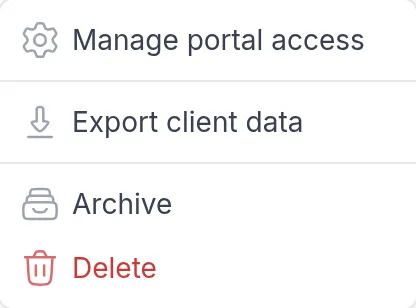
Section titled “Export a client’s data”Open the client, click ⋯ at the top right of their page and choose Export client data.
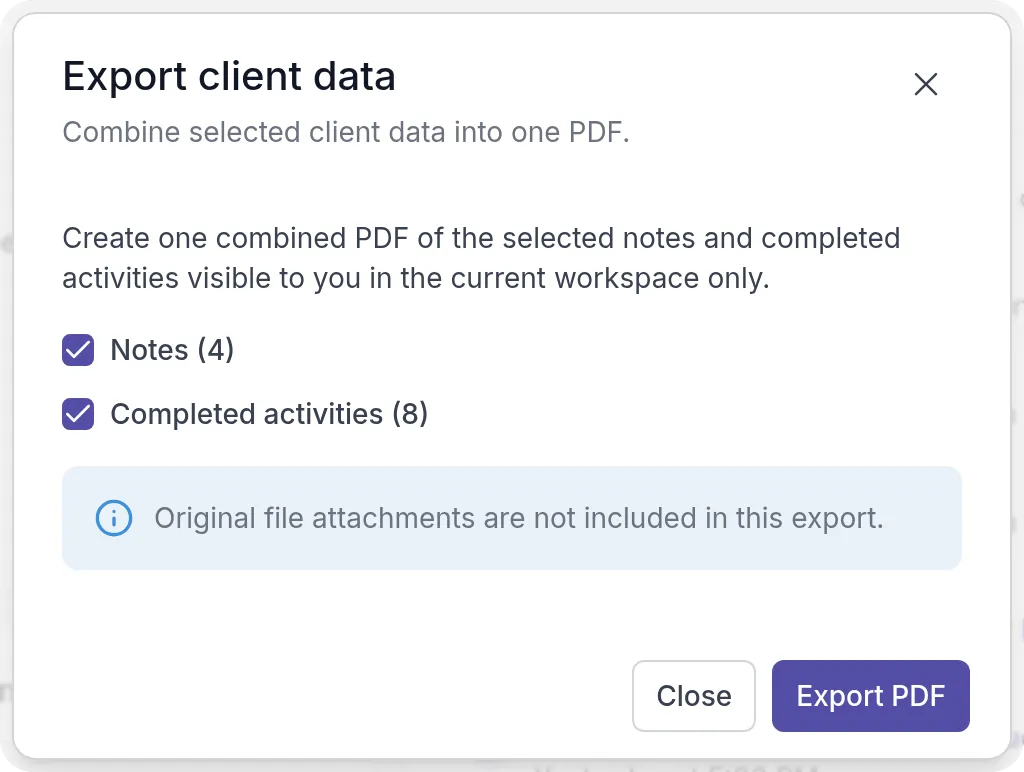
Select what to include, Notes, Completed activities or both, and click Export PDF. The numbers tell you how many items each part has.
Download the PDF
Section titled “Download the PDF”Quenza prepares the PDF in the background, which can take a while for clients with a lot of content. You can close the dialog and keep working; when you open Export client data again, you see the current status.
When the PDF is ready, Download PDF appears in the dialog, and you get an email with a link back to Quenza. The PDF is not attached to the email. If you are signed out, sign in first and then open the link again.
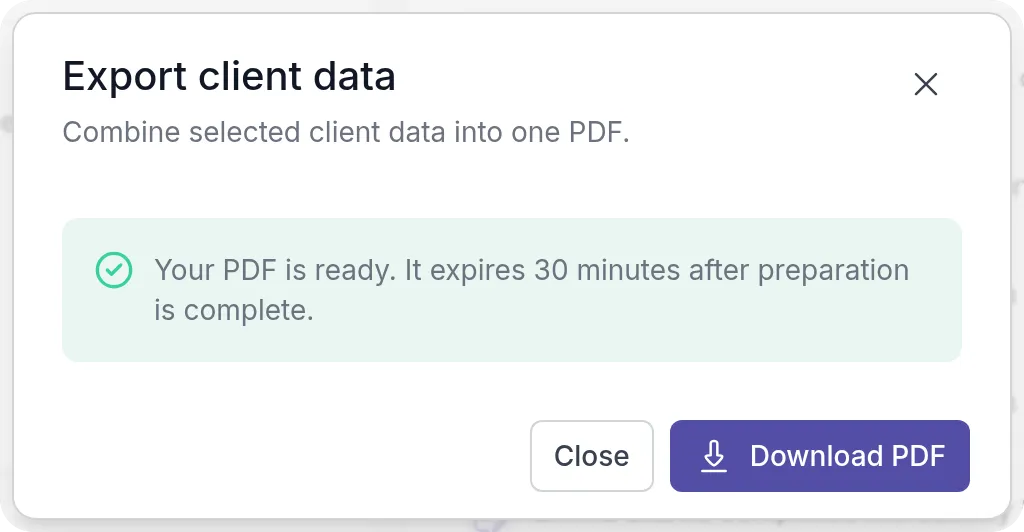
If the PDF could not be prepared, the dialog shows an error and you can click Try again.
Clients can export their own data
Section titled “Clients can export their own data”Clients can export their own notes and completed activities in the client app. They open My Profile, scroll to Export my data and click Export data. The rest works the same way: they choose what to include, get an email when the PDF is ready, and have 30 minutes to download it.
Good to know
Section titled “Good to know”- The PDF contains sensitive client information. Store and share it with the same care as any other client record.
- To export just one completed activity, see Export as PDF.
- Stopping your work with this client? Export their data first, then archive or delete them.
Was this article helpful?
Thanks for letting us know.
Thank you. We read every answer and use it to improve this article.