
Manage clients
Delete clients
Permanently delete a client from your workspace, together with all of their notes, tasks, files, comments and chat history.
Delete a client when you no longer need to keep any of their data, for example when a client asks you to erase their records, or when you added someone by mistake. Deleting is permanent. If you might want the records later, archive the client instead.
Before you delete
Section titled “Before you delete”Check whether you have to keep records of your work with this client, for example for your professional body or for tax purposes. If so, export the client’s data first, or archive the client instead.
Delete a client
Section titled “Delete a client”Open the client, click ⋯ at the top right of their page and choose Delete. The same option is in the ⋯ menu at the end of the client’s row in your client list.
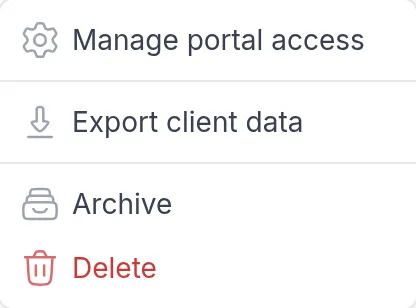
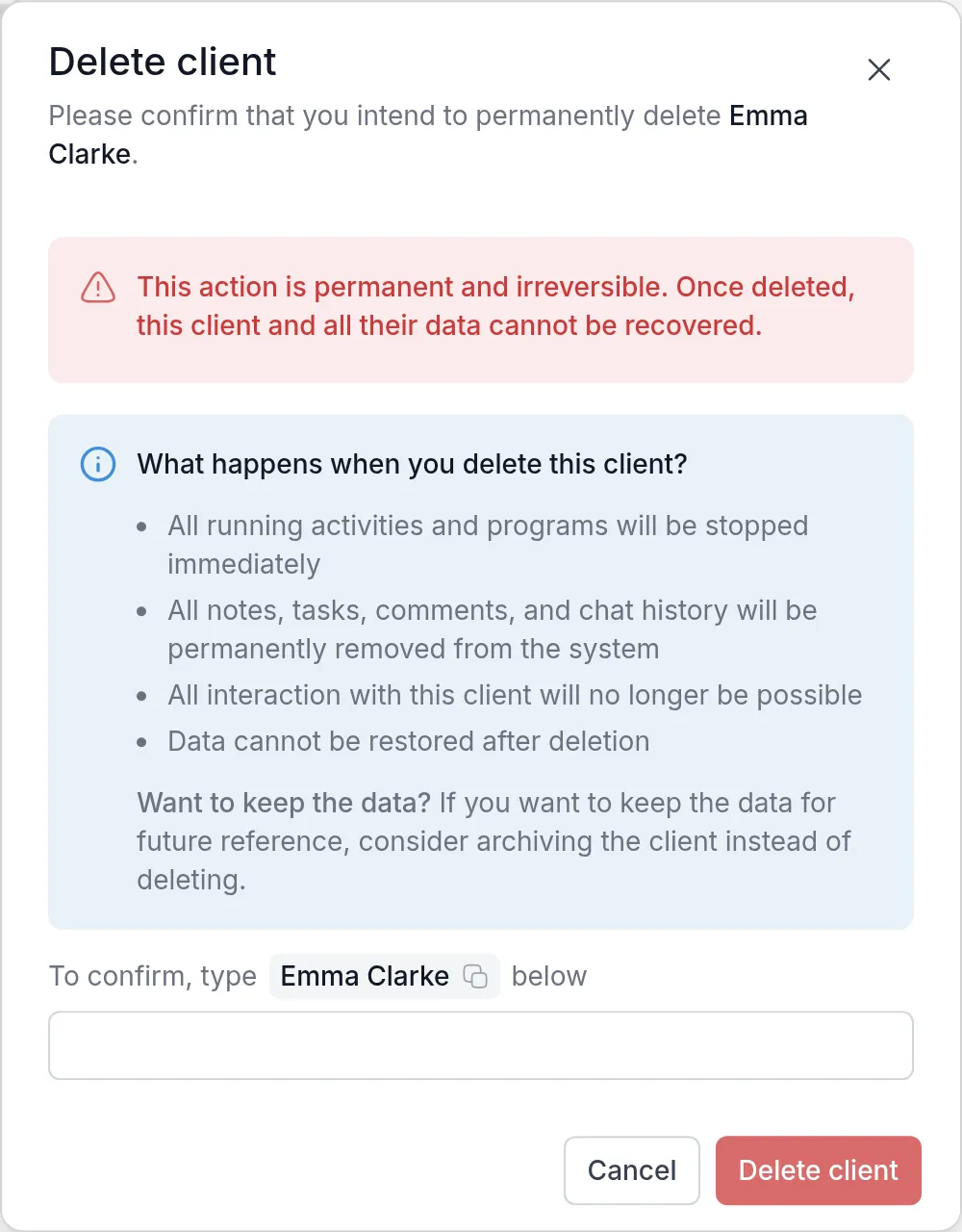
The dialog lists what will happen. Type the client’s full name to confirm (click the name in the dialog to copy it) and click Delete client.
You cannot delete your demo clientDemo clientA client in your own name that only you can see. Send it your content to see exactly what your clients will see..
What happens when you delete a client
Section titled “What happens when you delete a client”- All running activities and programs for the client stop immediately.
- All notes, tasks, files, comments and chat history are permanently removed.
- All interaction with the client is no longer possible. They can no longer sign in to your workspace or receive messages from you.
- The data cannot be restored.
Was this article helpful?
Thanks for letting us know.
Thank you. We read every answer and use it to improve this article.