
Work with clients
Send a program
Send a multi-step program to a client or a group and choose when it starts, who sees the results and how clients are notified.
Send a program from your library to one client or to a whole group. The client then works through its activities step by step, at the pace you set when you built the program.
When to send a program
Section titled “When to send a program”A program is a series of activities that belong together, such as a course of several weeks. Instead of sending each worksheet by hand, you send the program once and Quenza makes each activity available at the right moment. For example:
- After the intake, Sarah Bennett sends Lucas Meyer Better sleep in 4 weeks. Each week a new activity arrives, and she reviews his sleep diary before every session.
- The Mindfulness group gets Mindful mornings, so every member follows the same weekly exercises.
How the activities follow each other (a set time after the previous one, on fixed days, or when you start them by hand) is part of the program itself. See How program delivery works.
Sending a program works like sending a single activity, with a few program settings. You can only send programs to clients with the status Active.
Send a program to a client
Section titled “Send a program to a client”- Go to Clients, open the client and select the Programs tab.
- Click Send program.
- Search for the program in Search or select a program, select it and click Next.
- Choose the settings (see below) and click Next.
- Leave Send an email on to email the client, and edit the message under Customize Email if you like.
- Click Send.
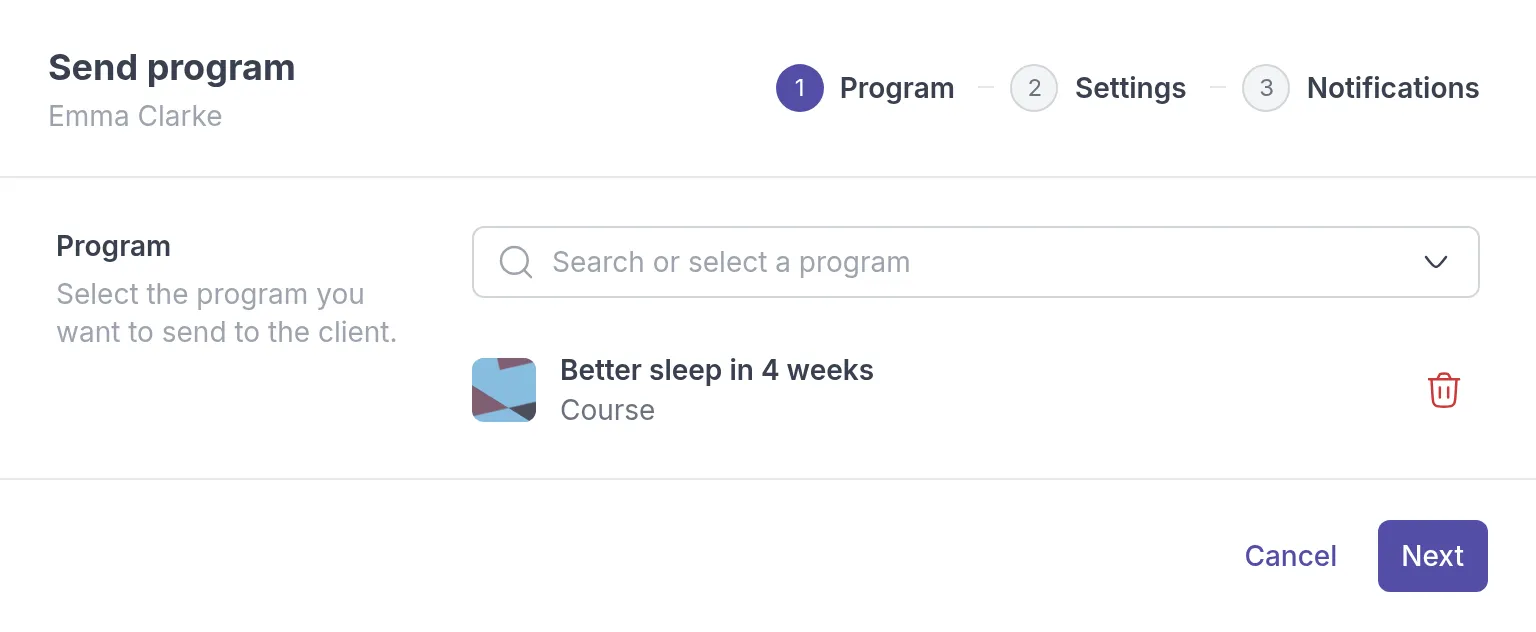
The program appears in the client’s Programs list. If the client has turned off email notifications, the email is not sent, but the program is still in their app.
To send a program to several clients or groups at once, go to Programs, click the ⋯ menu next to the program and choose Send program. Under Recipients, choose Clients or Groups and add the recipients.
Settings
Section titled “Settings”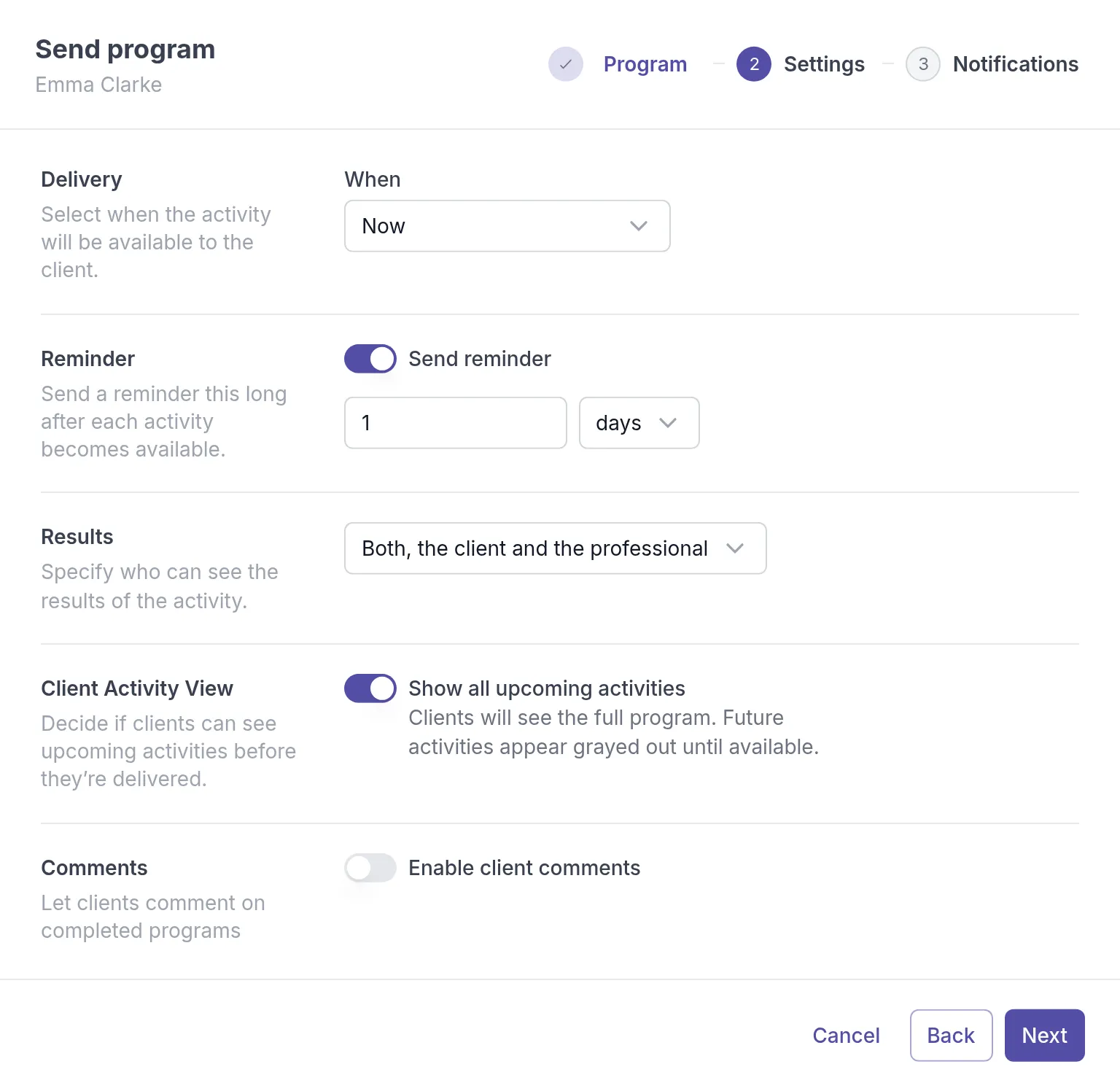
- When: when the first activity becomes available: Now, Tomorrow morning (9am), Tomorrow evening (8pm) or Custom, where you pick a Date and Time. The other activities follow the program’s delivery settings.
- Send reminder: turn it on to remind the client the time you set after each activity becomes available. The suggested time is one day.
- Results: who can see the answers: Both, the client and the professional, Only the client, Only the professional or The client decides.
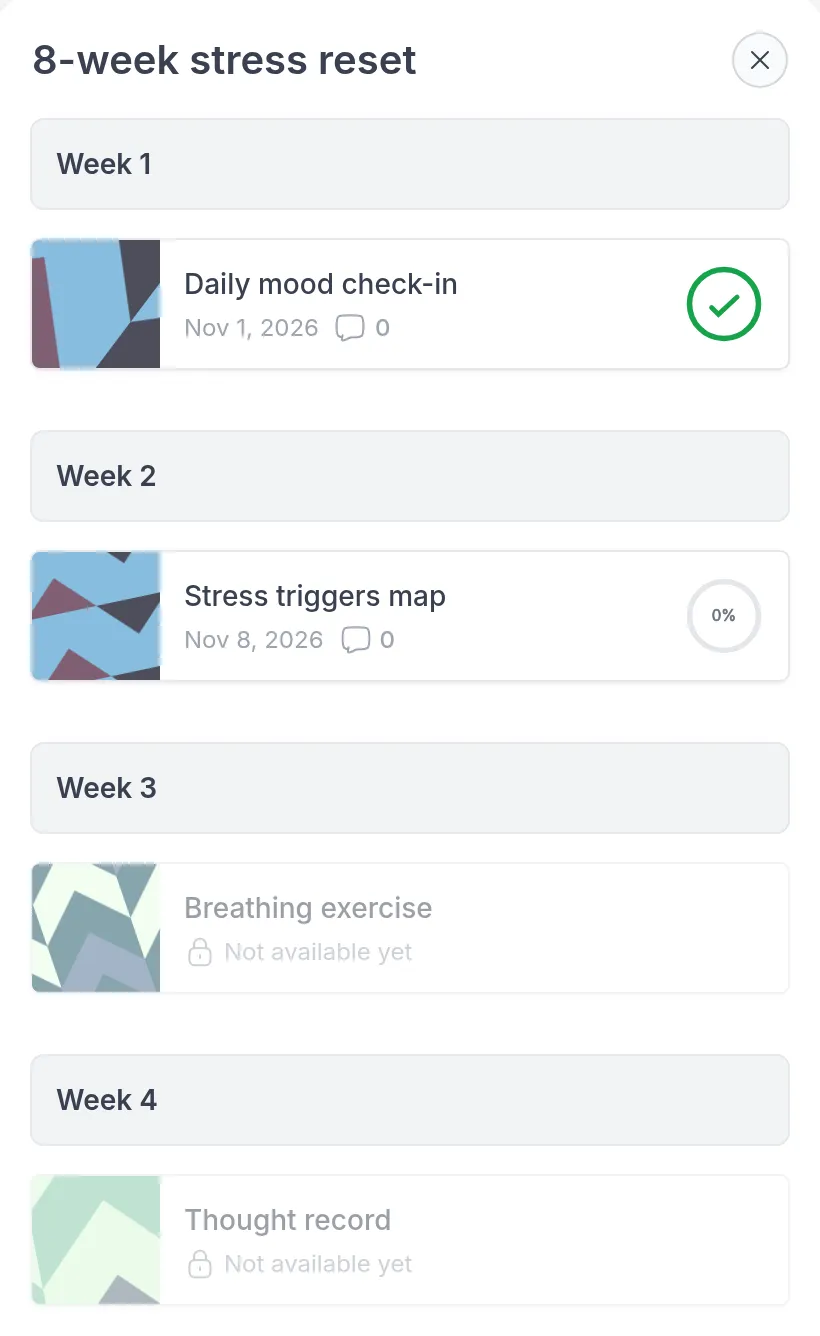
- Client Activity View: turn on Show all upcoming activities to let clients see the whole program from the start. Future activities appear grayed out until they are available. Leave it off if you want each step to be a surprise.
- Enable client comments: lets the client comment on the completed activities in the program.
With Show all upcoming activities on, the client sees something like this:
Send a program to a group
Section titled “Send a program to a group”Open the group, select its Programs tab and click Send program, then follow the same steps. Every member of the group gets their own copy and works through it at their own pace.
To send the program automatically to people who join the group later, see Automatically send activities and programs to new group members.
Cancel or delete a program
Section titled “Cancel or delete a program”To stop a program for one client, open the ⋯ menu next to it in the client’s Programs list, choose Cancel and confirm with Cancel program. The activities that are still open are canceled too, the program disappears from the client’s app, and the client gets a notification. You can cancel a program until it is completed.
A canceled program stays in the list with the status Canceled. To remove it, open its ⋯ menu, choose Delete and confirm with Delete program.

Cancel a program sent to a group
Section titled “Cancel a program sent to a group”Open the group, select its Programs tab, click the ⋯ menu next to the program and choose Cancel. Confirm with Cancel program.
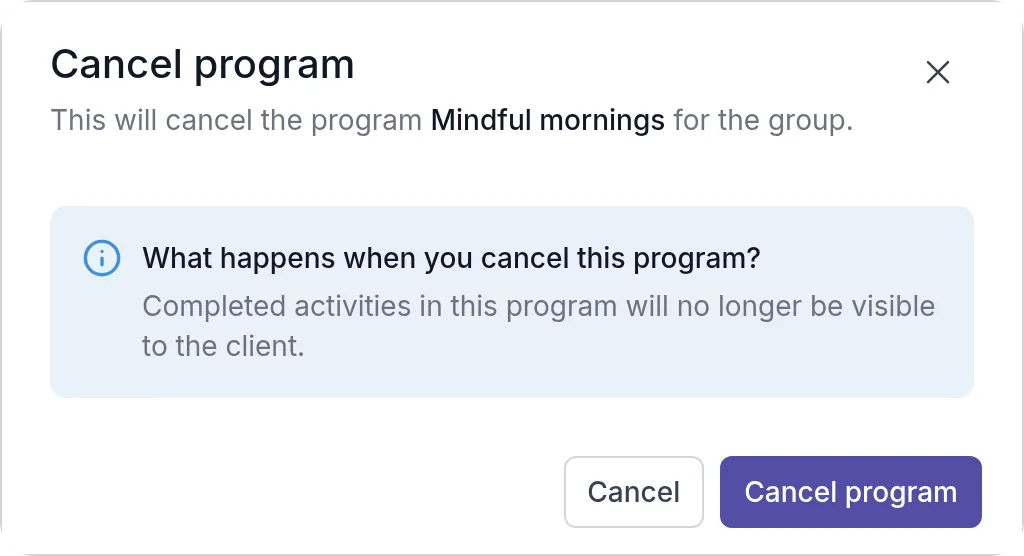
The program is then canceled for every member who has not completed it yet. This does not happen in one moment: Quenza confirms that the program “has been scheduled to be canceled”, and works through the members in the background, so the status in the list can take a little while to change. Completed activities in the program are no longer visible to the members.
The same menu has Manage members: it lists the group’s members with the status of their program, and a Send button for members who did not get it yet, for example because they joined later.
Was this article helpful?
Thanks for letting us know.
Thank you. We read every answer and use it to improve this article.