
Work with clients
Recurring tasks
Create a task once and let Quenza repeat it daily, weekly or monthly for yourself, a colleague or a client.
A recurring task repeats on a schedule you set, so you do not have to create the same to-do every day, week or month. Quenza creates a new task at each scheduled time, and the person it is assigned to sees it in their task list like any other task.
It works well for small habits between sessions. Sarah Bennett, for example, gives Emma Clarke a breathing exercise every morning and evening for the six weeks of her coaching program, and keeps a weekly task for herself to review her clients’ check-ins on Monday mornings.
Recurring tasks are not included in every plan. If the Make this task recurring switch is grayed out and shows an Upgrade button, your plan does not include them; see Quenza plans and pricing.
Create a recurring task
Section titled “Create a recurring task”Go to Tasks and click + Task, or add the task from the client’s Tasks tab. Fill in the Title, an optional Description and the Assignee: yourself, a colleague or a client. Then turn on Make this task recurring, set the schedule as described below and click Add task.
The schedule follows the assignee’s time zone, so choose the assignee before you check the dates in the preview.
Choose how often it repeats
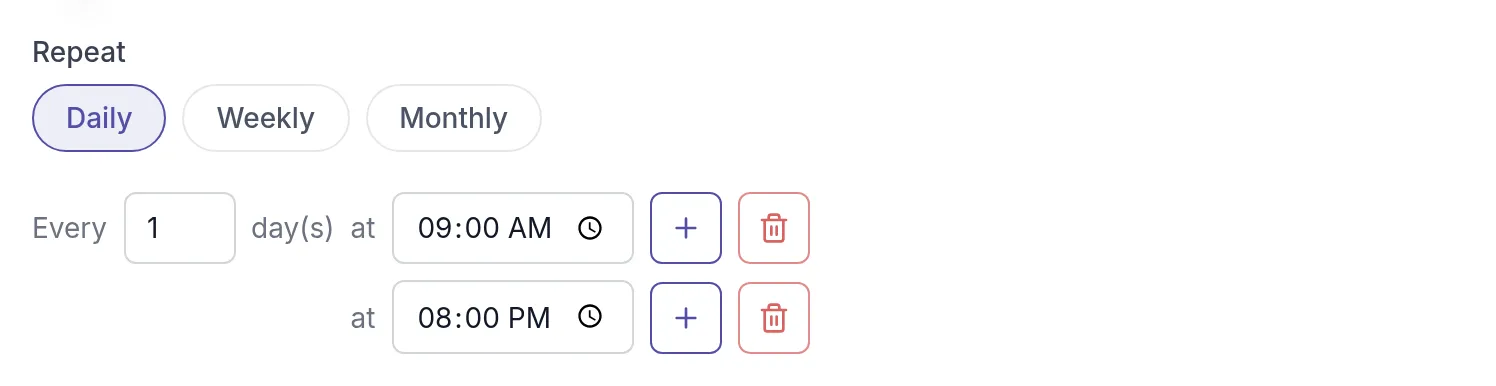
Section titled “Choose how often it repeats”Under Repeat, choose Daily, Weekly or Monthly, then set the interval and the time after at:
- Daily: every day, or every few days if you change the number. “Every 2 day(s)” repeats every other day.
- Weekly: every week or every few weeks, on the days you click (Mo, Tu, We and so on). You can select several days.
- Monthly: every month or every few months, on the day of the month you pick.

Several times a day
Section titled “Several times a day”Click + next to the time to add another time, and click the trash icon to remove one. Each time creates its own task. For Emma’s breathing exercise, Sarah chooses Daily with 09:00 and 20:00, so Emma gets one task in the morning and one in the evening.
Choose when it starts
Section titled “Choose when it starts”The Next field sets the date of the first occurrence. It is today by default; pick a later date if the schedule should start later, for example on the coming Monday.
Below the field, Quenza shows the next occurrences and the time zone it uses: “Using assignee timezone:” followed by the assignee’s time zone. If your client lives in another time zone, the times in the preview are their local times, which can be a different hour or day than yours. Check the preview before you save.

Choose when it stops
Section titled “Choose when it stops”Under Ends, choose:
- Never: the task keeps repeating until you change or delete it.
- On date: the task stops after the date you pick, for example on the day of the follow-up appointment.
- After: the task stops after the number of occurrences you enter, for example a weekly reflection that ends after 6 occurrences.

Use scheduled dates as due dates
Section titled “Use scheduled dates as due dates”By default, the tasks a schedule creates have no due date, so they are never shown as overdue. Turn on Use scheduled dates as due dates if each task should be due on its scheduled date: a task scheduled for July 22 is then due on July 22.
With the switch on, Create the task … day(s) before the due date sets how early the task appears in the list. For a weekly task due on Mondays and 3 days, the task due on Monday July 22 appears on Friday July 19, so the client has the weekend to finish it.

Follow and change a recurring task
Section titled “Follow and change a recurring task”In the task list, the original task shows a Running badge while the schedule is active and Completed when it has ended. The Recurring tasks filter shows only these tasks. Each occurrence appears as its own task; when you open one, click Open original task to see the schedule.
To change the schedule, click ⋯ next to the original task and choose Edit. Change the repeat pattern, times, start date or end, check the preview and click Update task. To end a schedule early, edit it and set Ends to On date.

When a schedule has ended, open the original task and click Create another one to start a new schedule with the same settings, starting today.
Was this article helpful?
Thanks for letting us know.
Thank you. We read every answer and use it to improve this article.