
Chat and notifications
Weekly summariesNew
Clients get a weekly or daily email and push summary of their open tasks, activities and programs, and choose themselves how and when.
Weekly summaries remind your clients of what is still waiting for them in Quenza: their open tasks, the activities they can do now and the programs they can continue. One message per client, by email, as a push notification on their phone, or both. Every client decides for themselves whether they want it, how often and when. They work on every plan.
A summary helps clients who don’t sign in every day. For example: Sarah sends Emma the Thought record on Monday afternoon. Emma forgets about it, but the next Monday at 9:00 her summary tells her she has an activity, a program and three tasks open, and Open My Day takes her straight there.
What your clients get
Section titled “What your clients get”A summary is only sent when the client has something open. If everything is done, nothing is sent. It counts:
- Tasks assigned to the client that are not completed yet, with or without a due date, including tasks the client created themselves.
- Activities the client can do now. Activities that are not available yet, expired or cancelled are left out.
- Programs with at least one activity the client can do now. A program that is only waiting for its next step does not count, and its activities are not counted again under activities.
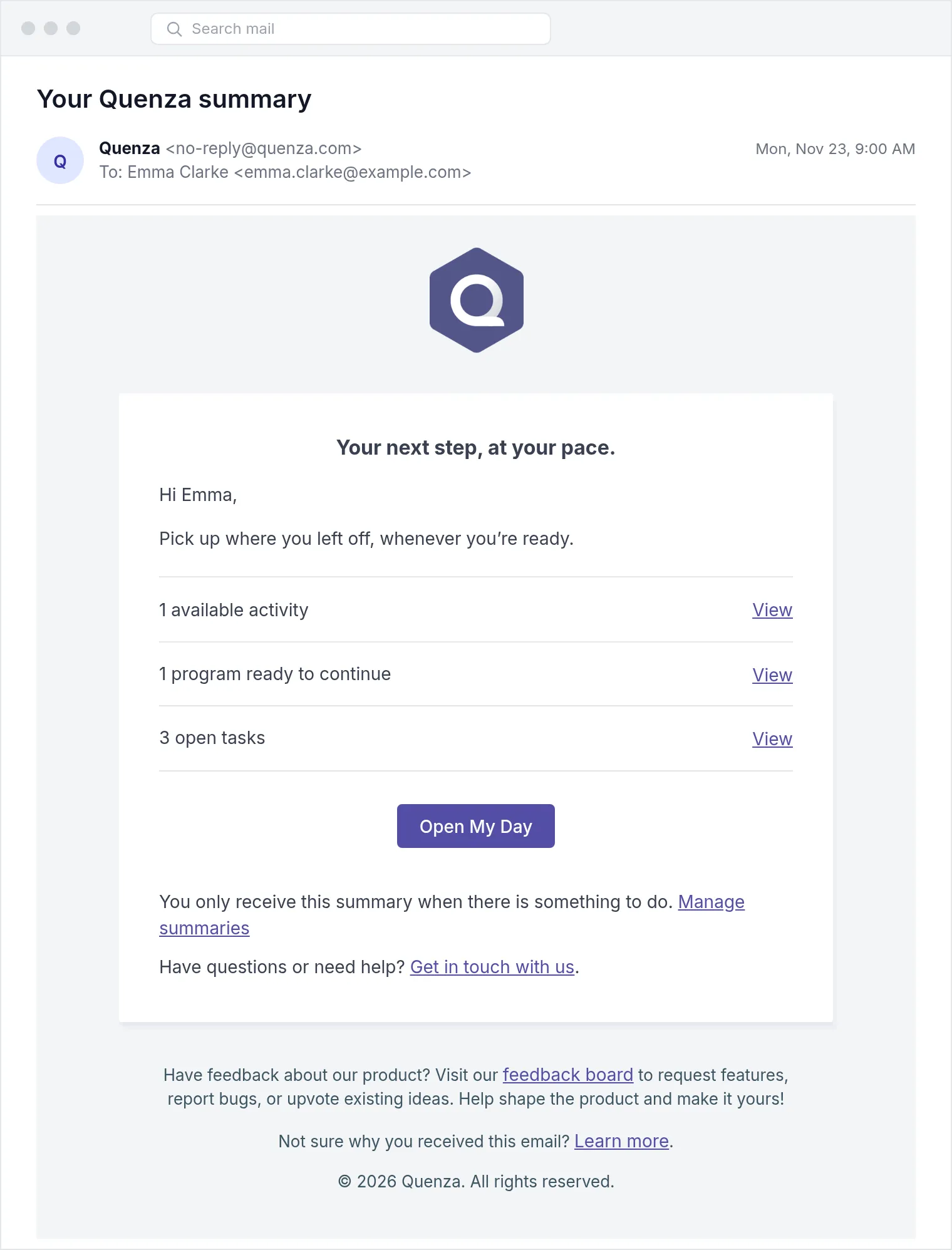
By default, the email only shows how many items of each kind are open, with a View link for each, the Open My Day button and a Manage summaries link to the client’s profile. Titles of activities and tasks are not in the email, because they can say something personal about the client.
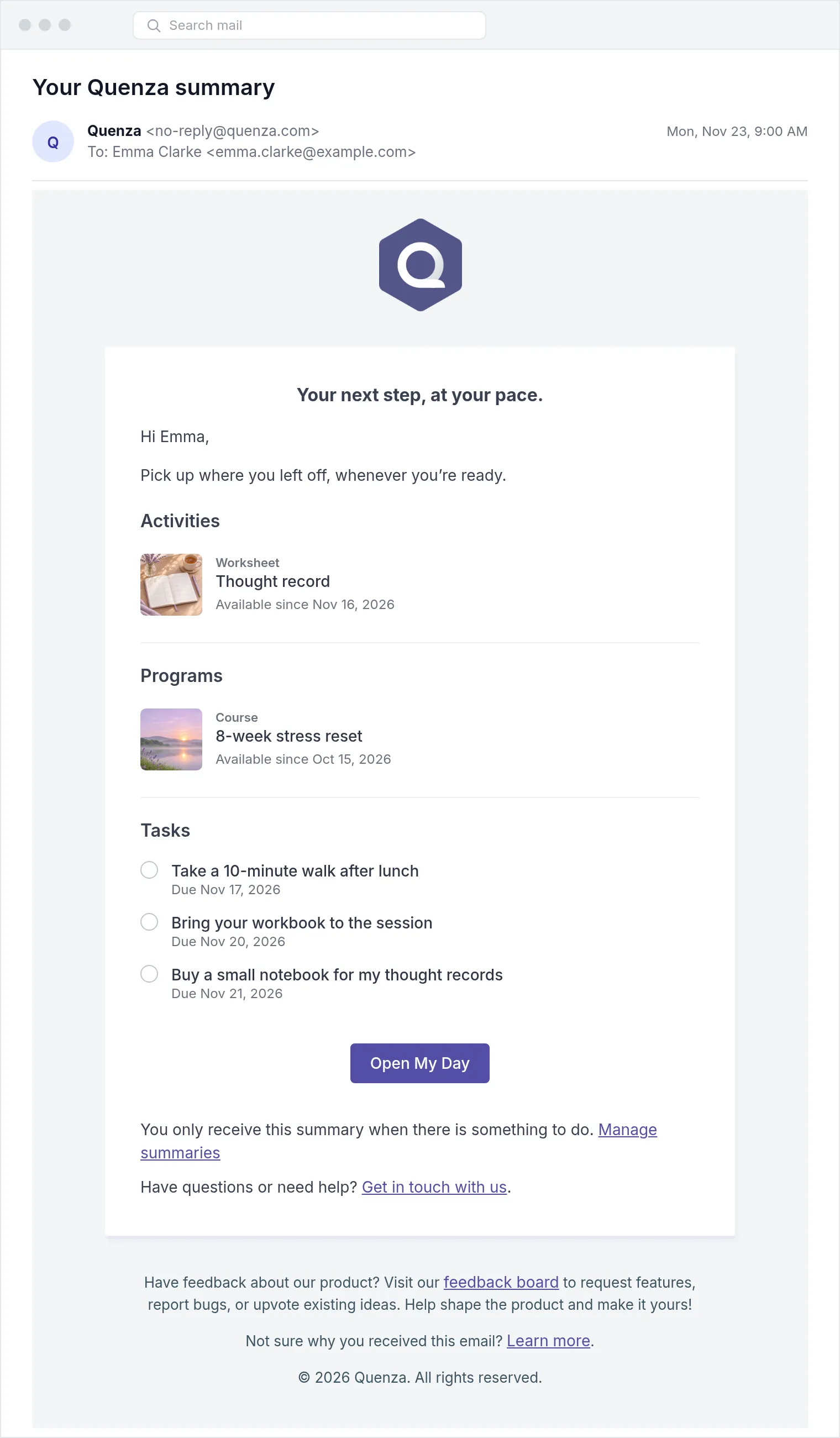
A client can choose Include titles instead. The email then lists up to five items per kind with their title, type and the date they became available, or the due date for tasks. Activities and programs with a cover image you uploaded show it as a small picture. Overdue tasks are shown in red. Each title links to the item.
The push notification never shows titles. It says “You have open items in Quenza. Open the app to continue.” and opens My Day in the Quenza app. Clients only get it if they use the app and allow notifications on their phone.
The email uses your workspace’s custom sender email if you have one active. With an active custom domain, the email has your logo and no Quenza branding, and its links use your domain.
Who has summaries on
Section titled “Who has summaries on”New clients have summaries on from the start: weekly, on Monday at 09:00 in their time zone, by email and push notification. Clients you added before summaries were released have them off until they turn them on.
Clients who are pending, archived, guestsGuestA client without a login. Guests get no invitation and cannot use the client portal or app, but Quenza emails them a direct link when you send an activity or share a note; you can convert them to an account later. or demo clients, or whose portal access is not active, get no summaries.
How your clients change their summary
Section titled “How your clients change their summary”Clients set up their summary in the client portalClient portalThe website where your clients sign in to see their activities, programs, tasks, files and chats. The Quenza app shows the same.. If you work with more than one practice, they set it in each workspace separately.
- Go to My Profile.
- In the Summaries card, turn Enable summaries on or off.
- Under Schedule, choose Daily or Weekly as Frequency, the Time and, for weekly summaries, the Weekday.
- Under Receive summaries via, turn Email and Push notification on or off. At least one has to be on.
- Under Email content, choose Summary only or Include titles.
- Click Save.
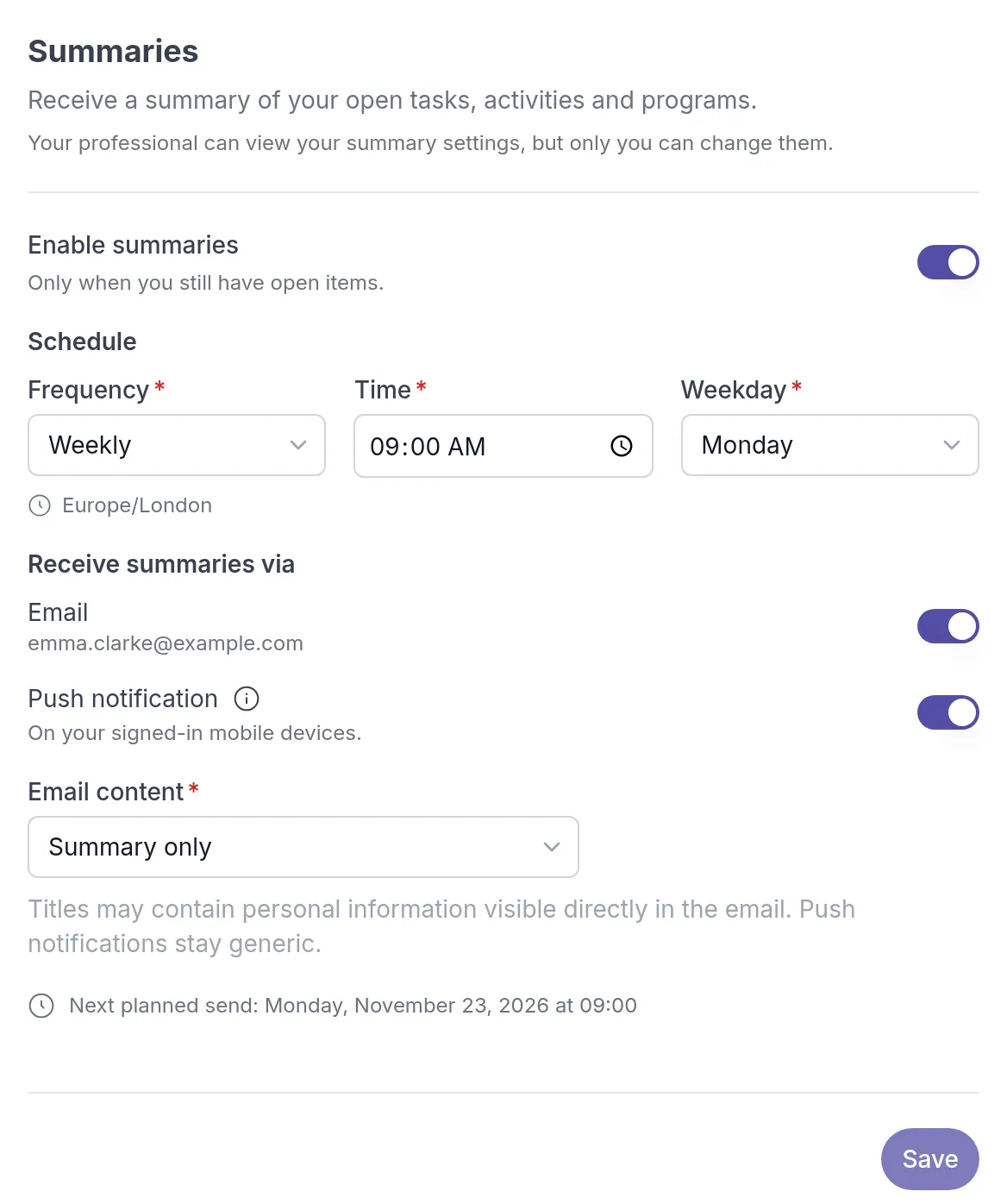
The summary is sent at the chosen time in the time zone of the client’s profile. After saving, the card shows Next planned send with the date and time. Saving never sends a summary right away. When a client turns summaries off, Quenza keeps their choices for when they turn them on again.
See a client’s settings
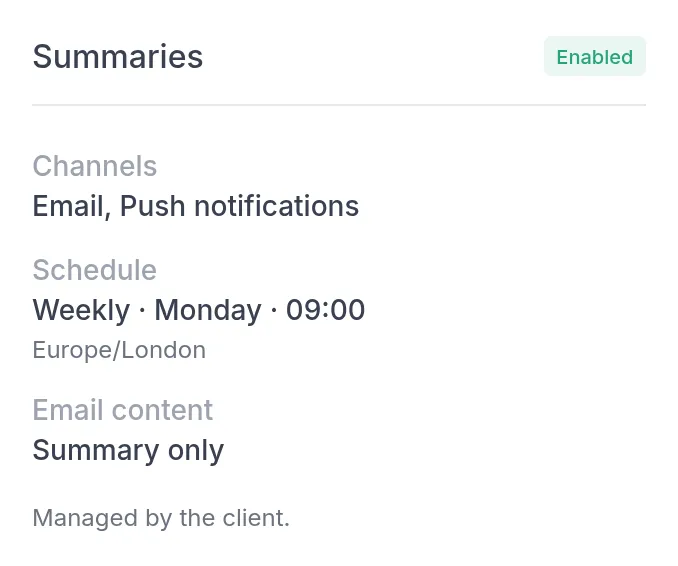
Section titled “See a client’s settings”You can’t change a client’s summary, but you can see it. Open the client and go to the Details tab. The Summaries card below Client details shows Enabled, Disabled or Not available. For enabled summaries it shows the channels, the schedule with the client’s time zone and, if email is on, the email content: Summary only or Personal details if the client included titles.
If a client asks how to stop or change their summaries, point them to My Profile, or to the Manage summaries link at the bottom of the email. See also Notifications for clients.
Was this article helpful?
Thanks for letting us know.
Thank you. We read every answer and use it to improve this article.