
Chat and notifications
Out of officeNew
Set an out-of-office period with an optional message, so clients and colleagues see when you are away and until when you are back.
Going on holiday, to a conference or on leave? Set yourself out of office in Quenza, and your clients and colleagues see that you are away and until when. You can add a short message for your clients, for example who to contact in the meantime. Every professional sets their own status, whatever their roleRolesWhat each person in your workspace can see and do: Owner, Manager, Member or Billing Manager., on every plan.
For example: Sarah is away for a week. Before she leaves, she sets herself out of office until next Tuesday with the message “For anything urgent, please message Daniel Weber at the practice.” Emma sees it when she opens Quenza, so she knows why Sarah doesn’t answer and who to turn to.
Set yourself out of office
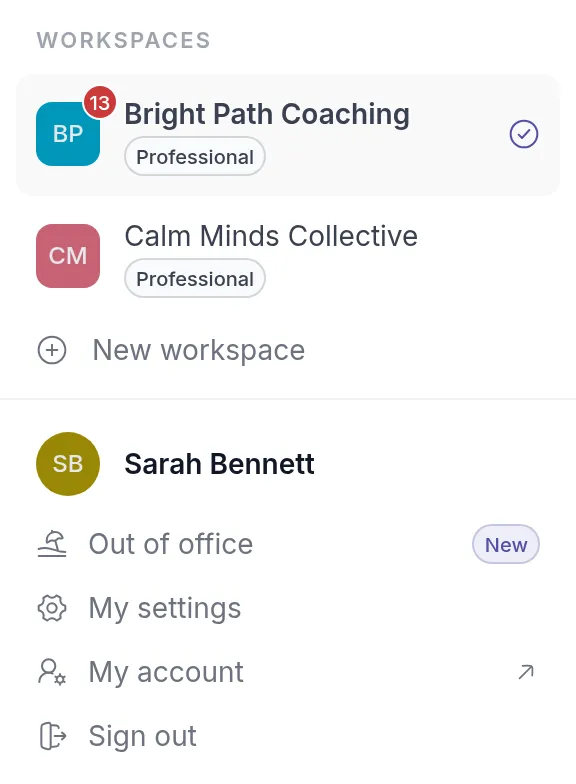
Section titled “Set yourself out of office”- Click your workspace name at the top left to open the workspace menu.
- Click Out of office. The Out of office window opens.
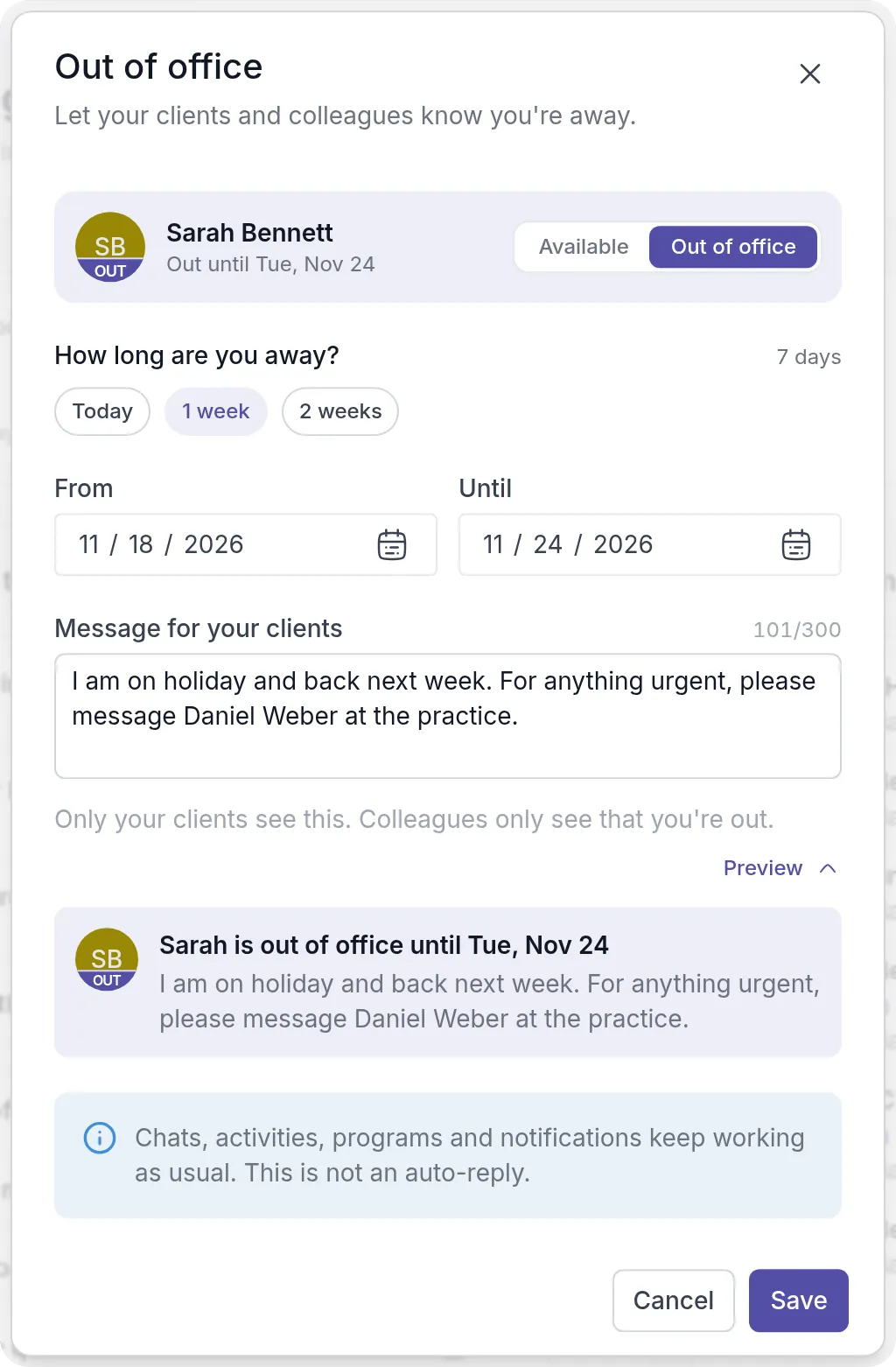
- Switch from Available to Out of office.
- Under How long are you away?, click Today, 1 week or 2 weeks, or pick the dates yourself under From and Until.
- Optionally, write a Message for your clients of up to 300 characters.
- Click Save.
Until is the last day you are away: with From on Monday and Until on Friday you are out for five days, and the window shows how many days that is. The presets start today. When your own dates don’t match a preset, the window marks them as Custom. Until can’t be before From or in the past.
Click Preview below the message to see the note your clients will get. The top of the window shows your profile picture with the OUT band as others will see it, and your status, such as “Out until Tue, Nov 24”.
The status applies to the workspace you are in. If you work in more than one workspace, set it in each of them.
Plan your time away in advance
Section titled “Plan your time away in advance”You can set your out-of-office period days or weeks before you leave. Choose a From date in the future and click Save. The window then says Scheduled and the day your OUT badge appears. Until that day, nobody sees anything.
Your status starts and ends by itself. It is active from the start of the From day until the end of the Until day, in the timezone of your profile (My settings → Profile → Timezone, see Edit your profile). The day after Until, you are available again without doing anything.
What your clients see
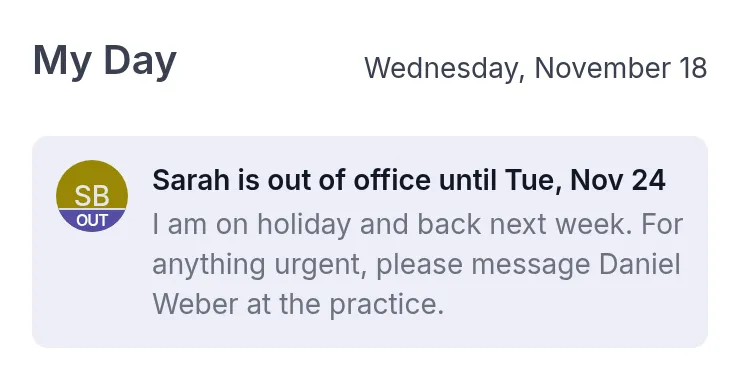
Section titled “What your clients see”Clients you are assigned to see a note at the top of My Day in the client portalClient portalThe website where your clients sign in to see their activities, programs, tasks, files and chats. The Quenza app shows the same.: “Sarah is out of office until” the last day, with your message below it.
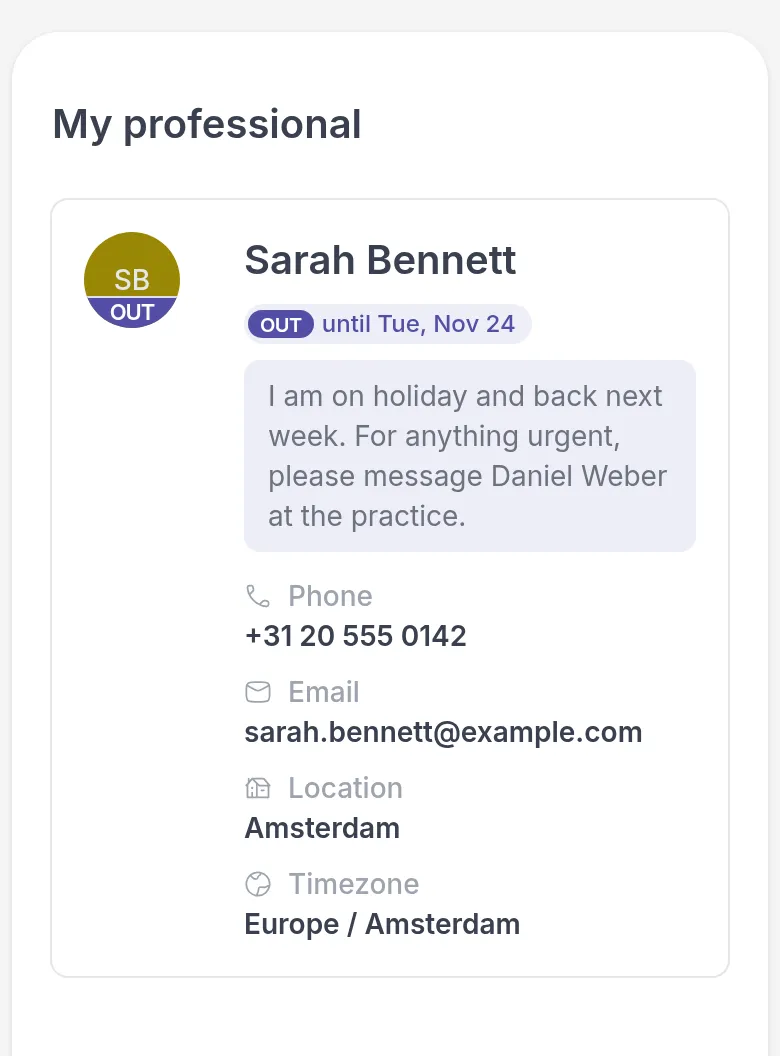
On the My professional page, your card shows an OUT until label next to your name and your message above your contact details. Your profile picture has an OUT band wherever clients see it, such as in chats, in comments and on the Appointments page. Where your picture is small, for example next to your chat messages, there is no room for the band: it gets a coloured ring around it instead.
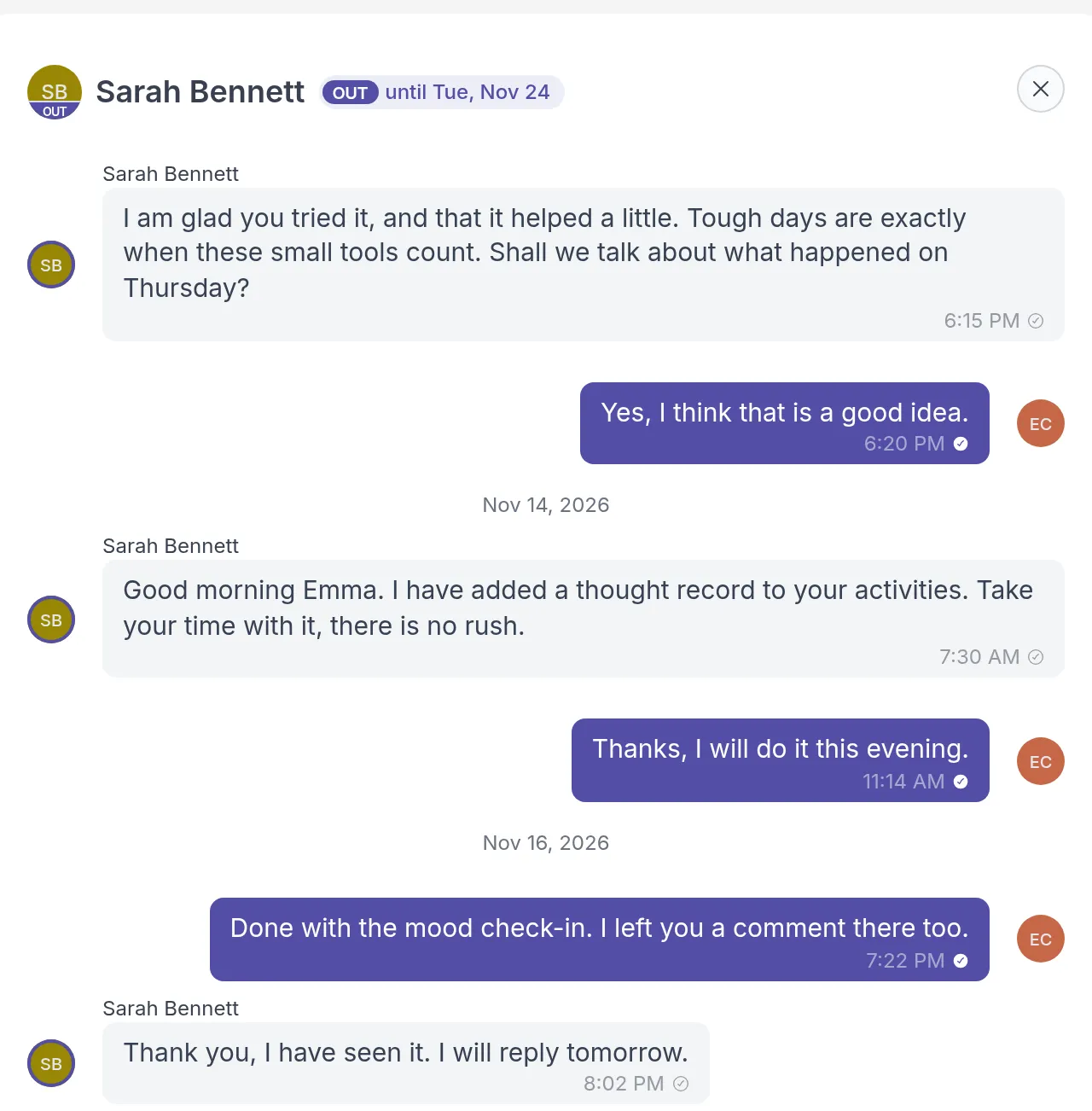
Without a message, clients only see that you are out of office and until when.
What your colleagues see
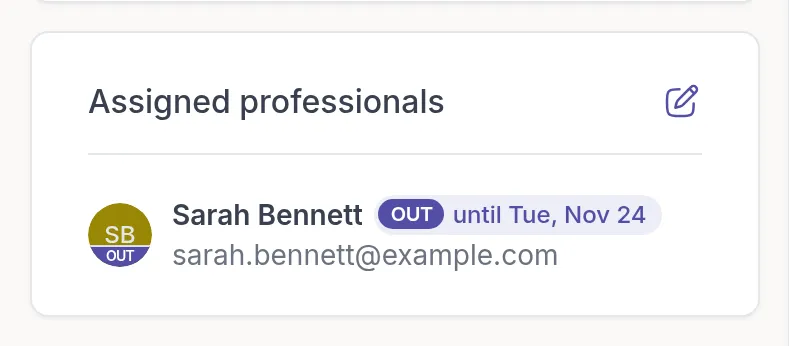
Section titled “What your colleagues see”Colleagues in your workspace see the OUT band on your profile picture, or a coloured ring around it where the picture is small, for example next to your comments and notes, in chats and in lists of assigned professionals, and an OUT until label next to your name, for example in a client’s Assigned professionals card and in the header of a chat with you. They never see your message: it is only for your clients.
You see your own status in the workspace menu: your profile picture has the OUT band and Out of office shows until when you are away.
What keeps working
Section titled “What keeps working”Out of office only shows that you are away. Everything else in Quenza keeps working as usual:
- Clients can still send you chat messages, and there is no automatic reply. Their messages wait for you, and you get notifications for them as usual.
- Activities, programs and tasks you scheduled are still sent and stay open for your clients.
- Clients can still book appointments through your booking calendar. If you don’t want bookings while you are away, block that time in your calendar tool, such as Calendly.
Come back early or change your dates
Section titled “Come back early or change your dates”Open Out of office in the workspace menu again. To change your dates or message, edit them and click Save. To end your status right away, switch to Available and click Save. This removes your dates and your message.
Was this article helpful?
Thanks for letting us know.
Thank you. We read every answer and use it to improve this article.