
Client Resources, Resources on Spark, and More
Resources now work both ways, and they are available on more plans. This update also brings combined client exports, clearer activity sections, and a round of improvements across the app. Here is what’s new.
Clients can add their own resources
Section titled “Clients can add their own resources”Your clients can now upload files and save links right in their app, then choose whether to keep them private or share them with their professionals. Whether it is a useful article, a worksheet, or something they want to discuss in your next session, they now have a place to keep it alongside the resources you share with them.
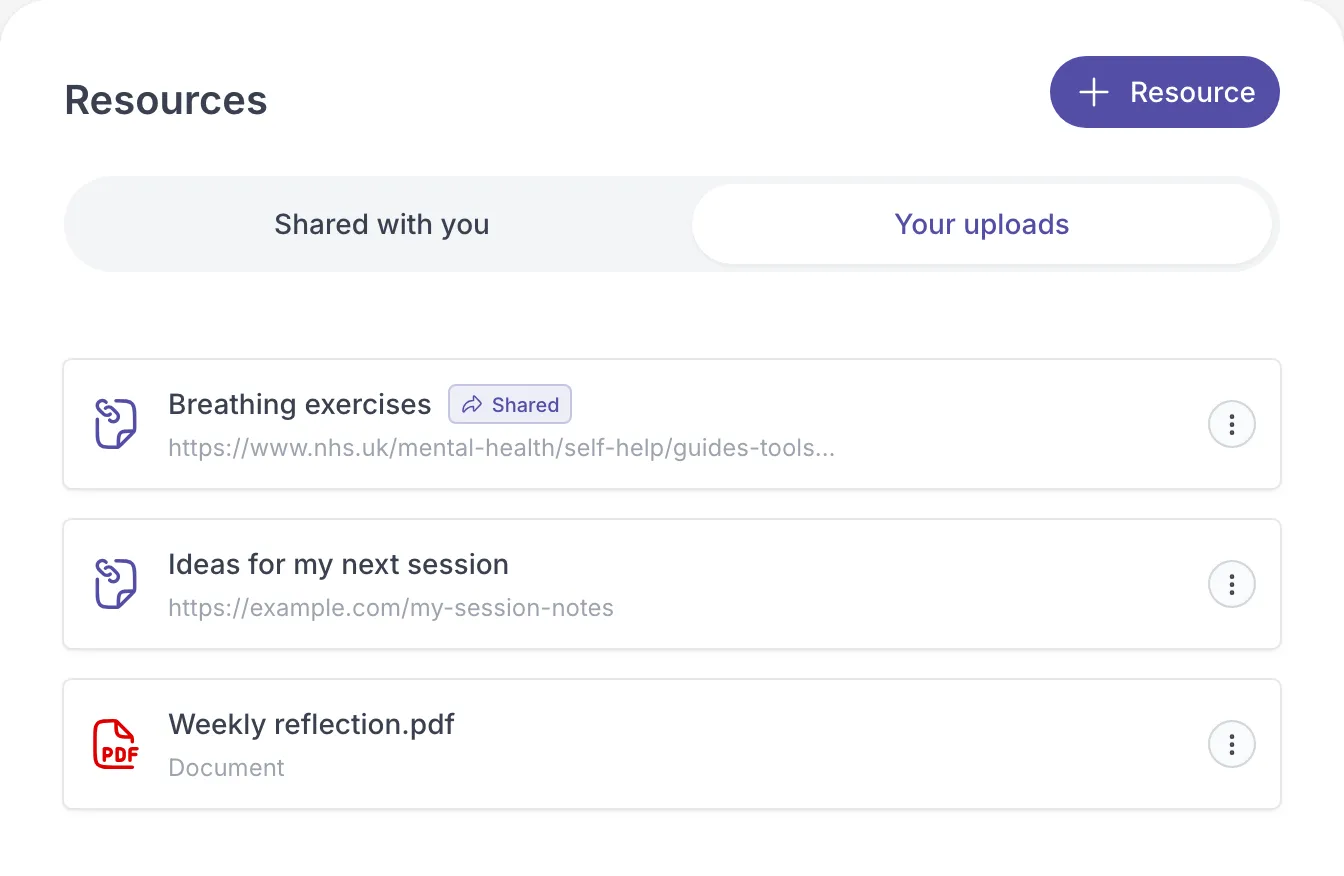
Resources are now included in Spark
Section titled “Resources are now included in Spark”We’ve made Resources available on the Spark plan. Previously included only on Growth and above, Spark users can now upload files, save links, and share resources with clients as part of their existing plan.
Export a client’s work in one go
Section titled “Export a client’s work in one go”You can now generate a combined PDF export from a client’s profile instead of downloading everything separately. Choose notes, completed activities, or both to bring the client work you have access to together in one document.
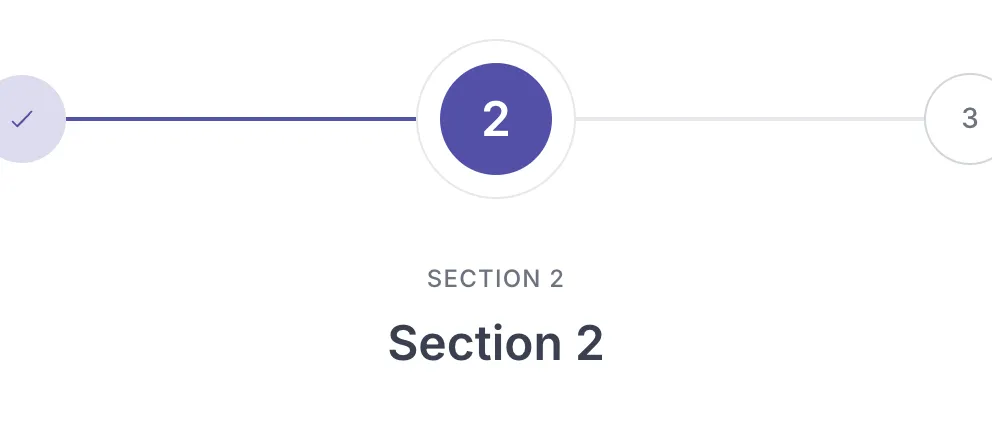
Give each activity section its own introduction
Section titled “Give each activity section its own introduction”The new Show sections as pages option introduces each section on a separate page with its number and title. It gives longer activities a clearer structure and helps clients see when they are moving into a new part of an exercise.
Also improved
Section titled “Also improved”- Client grid view: Switch between a list and client cards while keeping your search and filters.
- Activity covers: The cover now appears beside the title in the activity detail view.
- Cleaner tables: A refreshed table element styling and we made the row-label column optional.
- Links in email templates: Add clickable links to your email templates.
- More file formats: Upload .ics calendar files and .mkv videos in chat and resources.
More soon. As always, keep the requests coming on the feedback board.